AI Profile Picture Generator: Photo to PFP
Upload a portrait, describe the look you want in plain words, and the AI redraws the shot as a profile picture: light, background and framing are rebuilt together, so the result reads as one picture instead of a filter stuck on a snapshot. There is no fixed menu of styles here — whatever you can describe goes into the wishes field, from a calm everyday PFP to an anime or 3D character. It is a stylized portrait rather than a retouched photo: you stay recognizable, but you are not looking at your own face pixel for pixel. Every run lands in your History, so you can try several descriptions and pick the one you like.
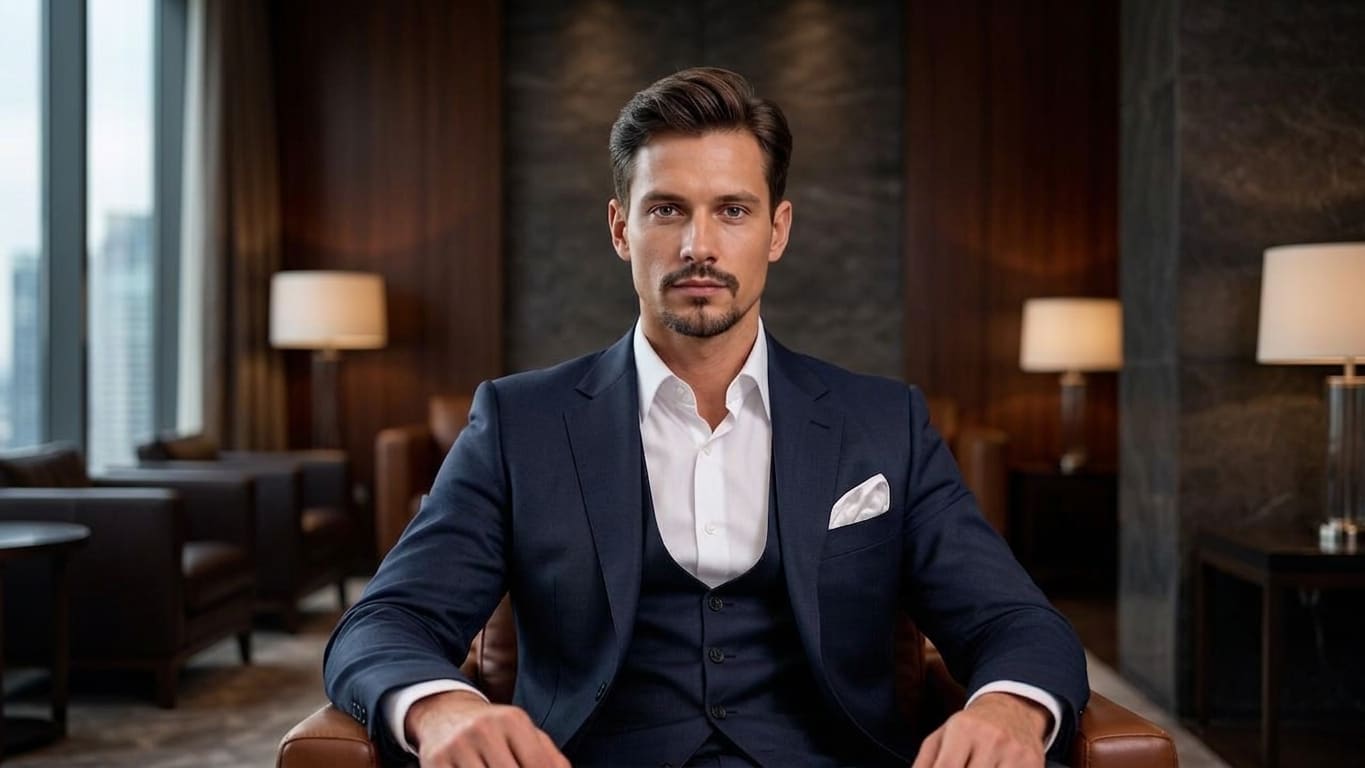
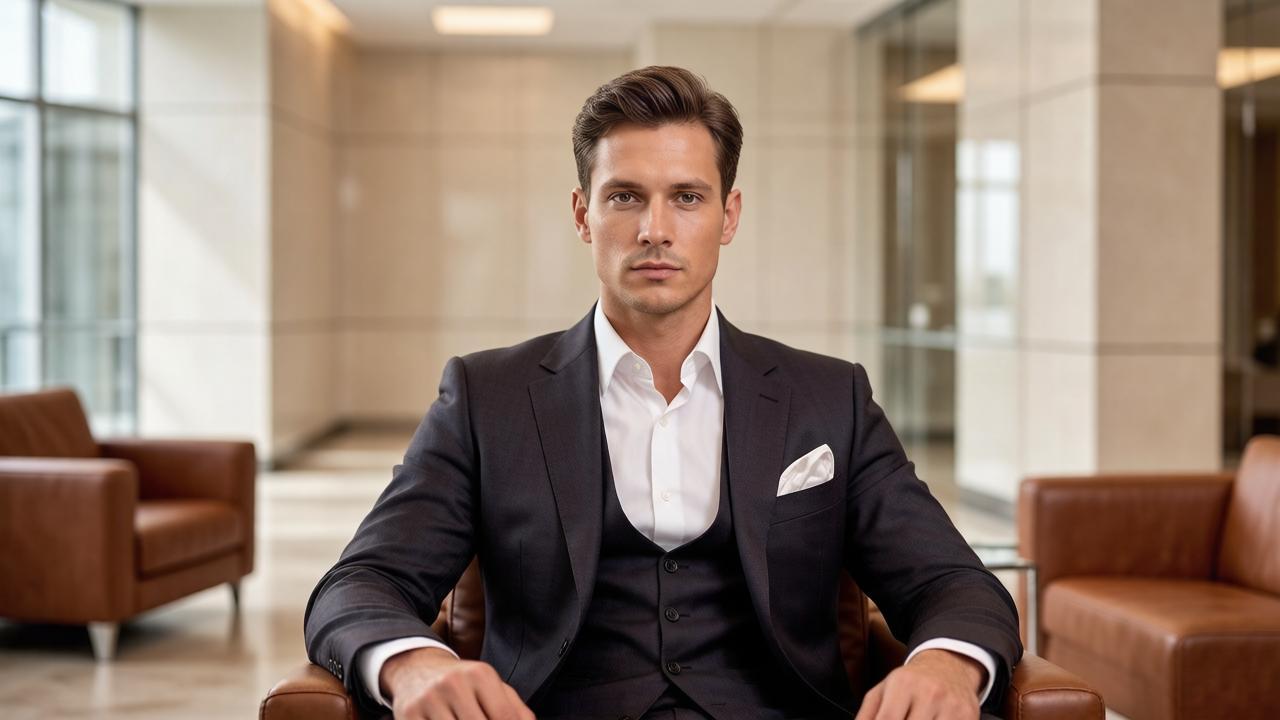 BeforeAfter↔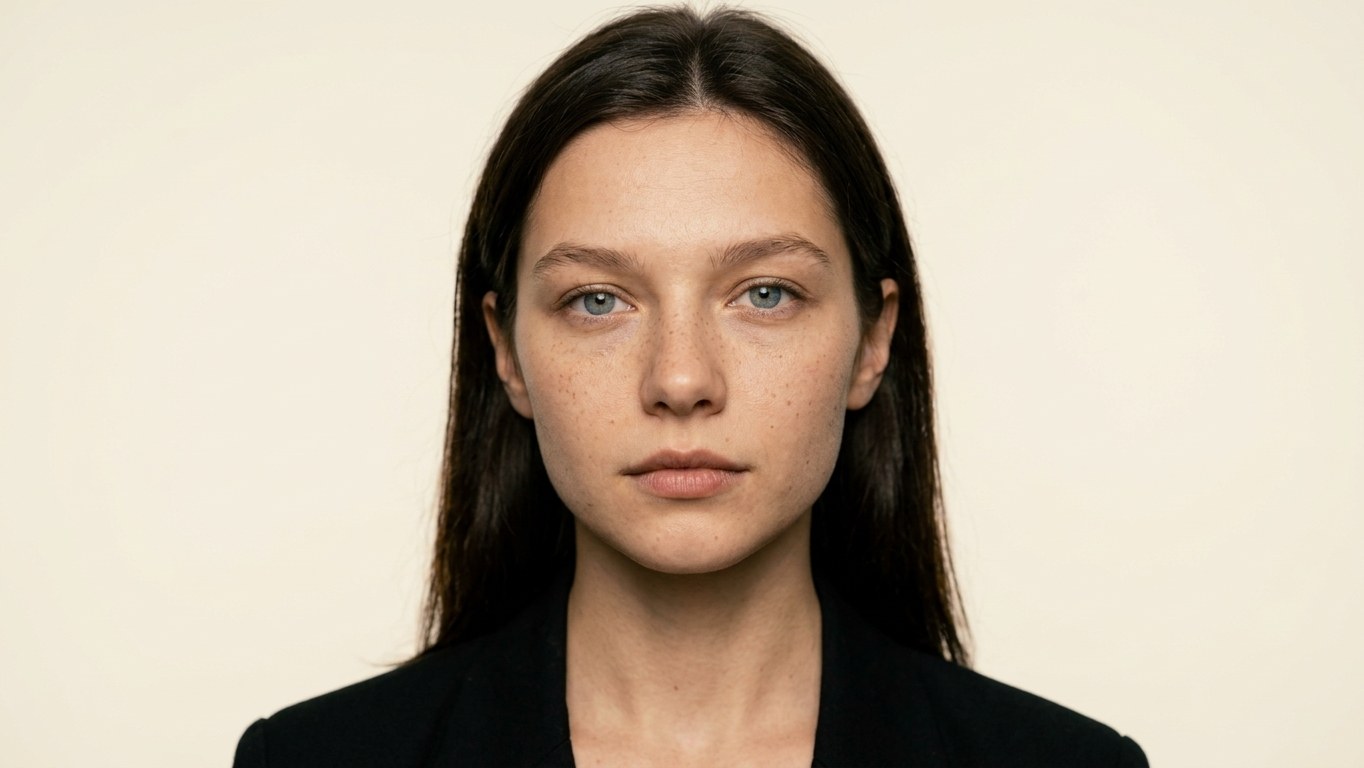
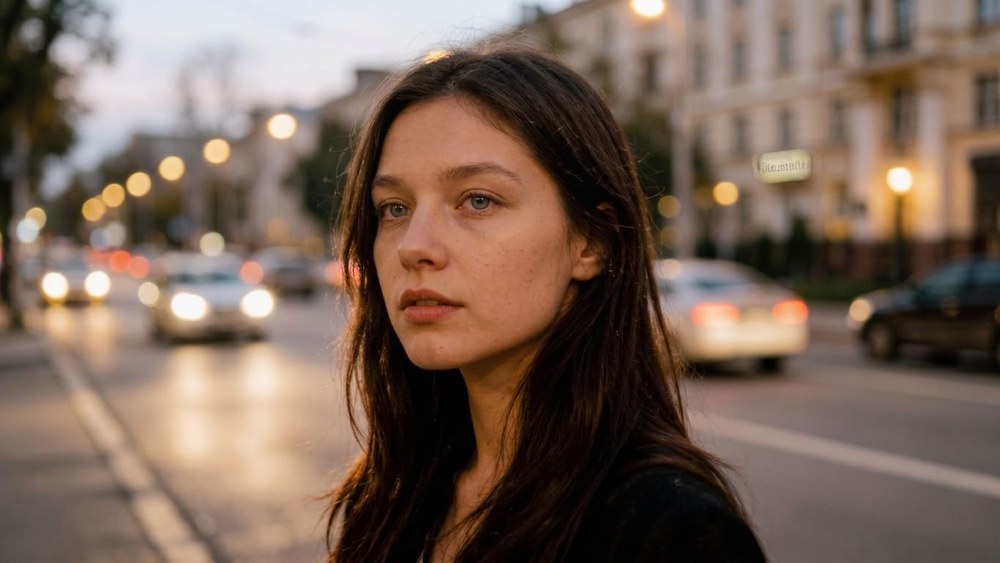 BeforeAfter↔
Photo in, profile picture out
The word avatar has been stretched to cover half the internet: talking video presenters, 3D characters walking around a game world, dress-up cartoon makers, a movie franchise. This page is the plain version of it. You upload a photograph of your face, you describe the look you want, and you get back a still image for the small circle next to your name — a profile picture, a PFP, and nothing more complicated than that.
It is not a filter laid over your snapshot. The frame is redrawn: face, hair, clothing, lighting and background are rebuilt together in one pass, which is why the result reads as a single picture rather than a photo with an effect stuck on top.
That is also the honest catch, and it is worth knowing before the first run: this is stylization, not retouching. You stay recognizable — face shape, hairstyle, skin tone, glasses, facial hair and general age carry over — but you are not looking at your own face pixel for pixel. The stronger the style you ask for, the further the result travels from the original.
How to make a profile picture in three steps
Nothing to install and nothing to learn. If the first version misses, change one line in the description and run it again — every attempt stays in History, so you can line them up and choose later instead of deciding on the spot.
What to write in the description
This is the part worth reading twice. Most profile picture tools hand you a grid of fixed looks and that is all you get. Here the style comes from a free text field, which means your description is the entire steering wheel — and a specific one gets you somewhere a preset never will: your hobby, your team colors, your channel's palette, the exact background you had in mind.
Six things are worth naming. You do not need all of them, but the more you name, the less the model has to guess.
The single most useful habit is the keep clause. It is the closest thing there is to a similarity dial: if a run drifts too far from your face, do not switch styles — add "keep the facial features and proportions, subtle stylization, realistic skin texture" and run it again. There is also an Improve description button next to the field that expands a short line into a fuller one; it is a paid action on your account, same as a generation.
Descriptions you can copy
Paste one into Additional wishes and adjust it to yourself. Swapping two or three words — a color, a background, a mood — is usually all it takes to make one of these your own.
Clean everyday PFP
Make a clean close-up portrait on a plain neutral background, soft even light, natural colors. Head and shoulders centered in the frame with a little space above the head. Keep the facial features, hairstyle and skin tone. No text, no logos, no other people.
Stay as close to my real face as possible
Subtle stylization only: keep my facial features, proportions, age and expression exactly as they are, keep natural skin texture without smoothing. Improve the lighting to soft even light and replace the background with a plain neutral one. Realistic photo look, no artistic effects.
Portrait for a work profile
Calm professional-looking portrait: even frontal light, plain light gray background, tidy appearance, relaxed neutral expression, natural colors. Head and shoulders centered. No artistic effects, no text, no props.
Soft pastel aesthetic
Portrait in a soft pastel palette, muted diffused light, gentle film grain, plain single-color background. Keep the hairstyle and the facial features recognizable. No text, no frames, no logos.
Anime PFP
Turn the portrait into an anime illustration: clean line work, expressive eyes, soft cel shading, simple uncluttered background. Keep the recognizable features, the hairstyle and the hair color. Bust-up framing, centered.
Stylized 3D character
Make a stylized 3D character portrait based on the photo: soft volumetric lighting, smooth shapes, appealing proportions, simple colored backdrop. Facial features stay recognizable. Centered bust shot, no text.
Gaming and streaming profile
Bold stylized portrait with strong contrast and saturated colors, dramatic rim light, dark simple background, crisp silhouette so it still reads at a tiny size. Keep the face recognizable. No text, no logos, no lettering.
Black and white classic
Black and white portrait with gentle contrast and smooth directional light, plain dark background, no harsh shadows across the face. Keep skin texture natural. Head and shoulders, centered.
Dark and moody
Low-key portrait: dark background, single soft light source from the side, deep shadows, muted desaturated colors, calm expression. Keep the facial features clearly visible and recognizable.
Outdoors, natural light
Portrait in warm natural daylight with a softly blurred outdoor background — greenery out of focus, late afternoon sun. Realistic colors, natural skin, relaxed expression. Keep the features and the hairstyle.
Flat illustration that reads when tiny
Simple flat vector-style portrait: few colors, bold clean shapes, thick outlines, solid single-color background, strong silhouette. Keep the hairstyle, glasses and overall likeness. No small details, no text.
Painted portrait
Painted portrait with visible brushwork, warm muted palette, soft studio light, plain dark background. Keep the face recognizable and the proportions realistic. No text, no signature, no frame.
Neon and night city
Portrait lit by colored neon — magenta from one side, cyan from the other — dark blurred city background, slight glow, cinematic mood. Keep the facial features recognizable and the skin natural. No text, no signage.
Matching set for several platforms
Portrait on a plain deep blue background, soft even light, calm expression, natural colors, head and shoulders centered with margin around the head. Same framing every time so it works as a consistent profile picture across sites.
What the AI changes and what it keeps
Expectations are most of the disappointment in this category, so here is the split as plainly as it can be put.
The shape of the face and its proportions, hairstyle and hair color, skin tone, glasses, facial hair, apparent age and build, the direction you are facing, and roughly what you are wearing.
Skin texture and fine lines, teeth, stray hairs, small jewelry, patterns and lettering on clothing, anything in the background, and hands if they happen to be in the frame.
The "plastic" look people complain about comes from the same mechanism: heavy stylization smooths skin into something too even to be real. It is largely fixable from the description — ask for "realistic skin texture, do not smooth the face, subtle stylization" and the result comes back closer to a photograph of a person.
One more thing surprises people: the same photo gives a different result every time. Each run is a fresh render, not a saved recipe, so two attempts with identical wording will differ. That is worth using rather than fighting — run it three or four times, then compare in History. If you want less variation between runs, write a more specific description; vague wording leaves more room for the model to wander.
What your source photo should look like
A phone selfie is fine. You do not need a studio — you need a frame the model can read clearly.
If the only photo you have is soft or shot in poor light, fix that first and stylize second: unblur image for a blurry frame, photo enhancer for a dark, flat or noisy one, image upscaler for a tiny one. Then bring the cleaned-up version back here.
Squares, circles and the size your picture is actually shown at
Almost nobody thinks about this before uploading, and it is the difference between a picture you like in full view and a picture that works in the tiny circle where it will actually live. Most platforms — social feeds, chat apps, community sites — display a profile picture as a circle; a few keep it square. You do not get to choose which, so compose for both.
The math is unforgiving in a useful way: a circle inscribed in a square keeps only about 78% of the area. Roughly a fifth of your image, all of it in the corners, is never shown to anyone. Anything you put near a corner is gone by definition — a shoulder, a hand, a caption, part of a hat.
Then there is scale. In a feed, a comment thread or a chat list, a PFP is often rendered only a few dozen pixels across — smaller than the icons on your phone's home screen. What survives that: one face, a strong silhouette, clear contrast between subject and background, and very few small details. What dies: thin lettering, fine patterns, a distant figure, delicate shading.
Now the part specific to this tool. The result follows the shape of the photo you upload — nothing is forced into a fixed frame. Upload a square crop and the result comes back square; upload a tall vertical portrait and it comes back tall. The long side is 1024 px on Standard and 2048 px on Pro, and once your photo is loaded the exact frame size is printed right under Quality, so you can see what you are about to get before you press Create.
Which gives a simple recipe: crop your photo to a square before you upload it, and ask for centered head-and-shoulders framing with margin around the head. Then no platform has to crop on your behalf, and what lands inside the circle is what you chose.
Where a new profile picture goes
Social. Round crop, shown small, scrolled past fast. A recognizable face and a background that contrasts with the feed beats any amount of fine detail.
Games and chat. This is where stylization is not only accepted but expected — bold colors, dramatic light, an illustrated look. Worth knowing that some gaming profiles show the picture as a square rather than a circle, which is another reason to keep the subject centered.
Work. An internal chat account, a team page, an email signature, the header of a resume, a conference bio. Keep it calm and realistic here — plain background, even light, no effects. One caution, and it matters: professional networks generally require a genuine photograph of the real person (LinkedIn spells that out in its terms), so a stylized portrait is the wrong thing to put there. For a work photo that has to stay a real photo, improve the shot you have with the photo enhancer or swap only the backdrop with change background.
Dating. Use a generated portrait as a fun extra, never as the photo someone judges you by. People expect to meet the person in the pictures, and a stylized face sets up a comparison you did not intend.
Forums and communities. Long threads, small icons, lots of scrolling. A distinctive silhouette and a consistent color do more for recognition than any detail inside the face.
Privacy: what happens to the photo you upload
You choose one file yourself and hand over that one file. The page never asks for access to your camera roll or your gallery, and nothing else on your device is read.
The photo goes for processing at full quality — it is not squeezed down on the way in — and both the upload and the result are kept in your account so you can find them again in History. That storage is the reason an account is needed at all: without one there would be nowhere to put your pictures, and they would vanish the moment the tab closed.
Deleting is real deleting. Remove a result from History and the files behind it — the generated picture and the photo you uploaded for it — are deleted from storage, not just hidden from your list. The only exception is a file still attached to another result you decided to keep.
One switch to know about before you start. On the higher paid plans a Private toggle keeps a run out of the public feed — with it on, only you see the result. Without it, a result may appear in the site gallery. It sits next to Create and has to be on before you press the button; on a free account it opens an upgrade window instead.
Whose photo you may upload, and what this is not for
Free profile pictures: formats, limits and what free covers
You can try it for free. A new account gets two free generations in total — not two a day and not two a month — and this tool is one of the ones they cover. Free runs use Standard quality; Pro is part of a paid plan. After that, work continues on a plan or a pack, and the terms live on the pricing page.
Two things are better known up front than discovered later. Free runs carry a light ai.neiroset.com signature in the bottom-right corner — any purchase removes it permanently, including from pictures you generated earlier. And unlike some of the other tools here, Download on this page is open from the start: you can save your profile picture on a free run, signature and all. There is also a pace limit of six runs a minute per account, which ordinary use never reaches.
Accepted formats are the ones printed on the upload panel: JPG, PNG, WEBP — up to 10 MB, with no limit on the resolution of what you upload. HEIC and HEIF files are not accepted — on an iPhone, either set the camera to save as "Most Compatible", or share the photo once to yourself, which converts it to JPG along the way.
It all runs in a browser, on a phone, a laptop or a tablet. There is no app to install, and your results open from any device you sign in on.
Do I need an account?
Yes. You can fill in the whole form as a guest, but pressing Create opens the sign-in window. That account is what keeps every version in History next to its original, on whatever device you pick up next.
Frequently asked questions
How do I make an AI profile picture from a photo?
Upload a portrait, write the style you want into Additional wishes, choose Quality and press Create. The picture appears in History beside the original, and you can save it right away with Download.
Will it still look like me?
Recognizably, yes — not identically. This is a stylized portrait, so features are redrawn rather than preserved pixel for pixel. Ask for subtle stylization and add "keep the facial features, proportions and age" to stay close; ask for a bold illustrated style and accept that the face moves further away.
Is it free?
A new account gets two free generations in total, and this tool is covered by them. They run at Standard quality. Free runs carry a small ai.neiroset.com signature in the corner.
Can I make an anime PFP?
Yes — write it in the wishes field, there is a ready line above you can paste. If you want a full anime illustration rather than a profile picture specifically, the dedicated anime style tool is built for that.
What size is the result, and will it fit a square?
The result keeps the proportions of the photo you upload, with the long side at 1024 px on Standard and 2048 px on Pro. So crop your photo square before uploading if you want a square PFP — the exact output size is shown under Quality once the photo is loaded.
Why does the same photo give a different result every time?
Because each run is a fresh render rather than a stored recipe. Two identical requests will differ. Use it: run a few times and compare them in History. A more specific description narrows the spread.
How do I avoid the plastic, over-smoothed look?
Say so in the description: "realistic skin texture, do not smooth the face, subtle stylization, natural colors". Most of the waxy look comes from asking for a strong style and nothing to hold it back.
Can I use it as a portrait for my work profile?
For an internal chat account, a team page or an email signature — sure, if your workplace is fine with an illustrated portrait. Keep it calm and realistic. For professional networks that require a genuine photograph of you, this is the wrong tool: improve your real photo with the photo enhancer instead.
Can I use it for a passport or an ID photo?
No. Documents require an unaltered photograph taken to a specific standard, and a stylized portrait is not that, no matter how realistic the run comes back.
Can I upload a photo of a friend or a celebrity?
A friend, only with their agreement. A celebrity or any other public figure, no — and never present a generated image as a genuine photo of a real person.
My only photo is blurry or low resolution. What do I do?
Clean it up first, then stylize. Try unblur image for a soft frame, photo enhancer for a dark or noisy one, or image upscaler for a small one, then bring the result back here.
I just want my real photo with a different background.
Then you want change background, which replaces the backdrop and leaves you as you are, or background remover if you would rather cut yourself out and place the result somewhere yourself.
Does it work on a phone?
Yes. The page opens in a mobile browser on iPhone and Android, and there is no app to install. HEIC files from an iPhone camera are the one thing to convert first.
Who can see my photos?
On the higher paid plans a Private switch keeps a run out of the public feed — with it on, only you. Without it, a result may appear in the site gallery. It sits next to Create and has to be on before you start; on a free account it opens an upgrade window instead. Deleting a result from History removes the underlying files from storage.
Try other tools
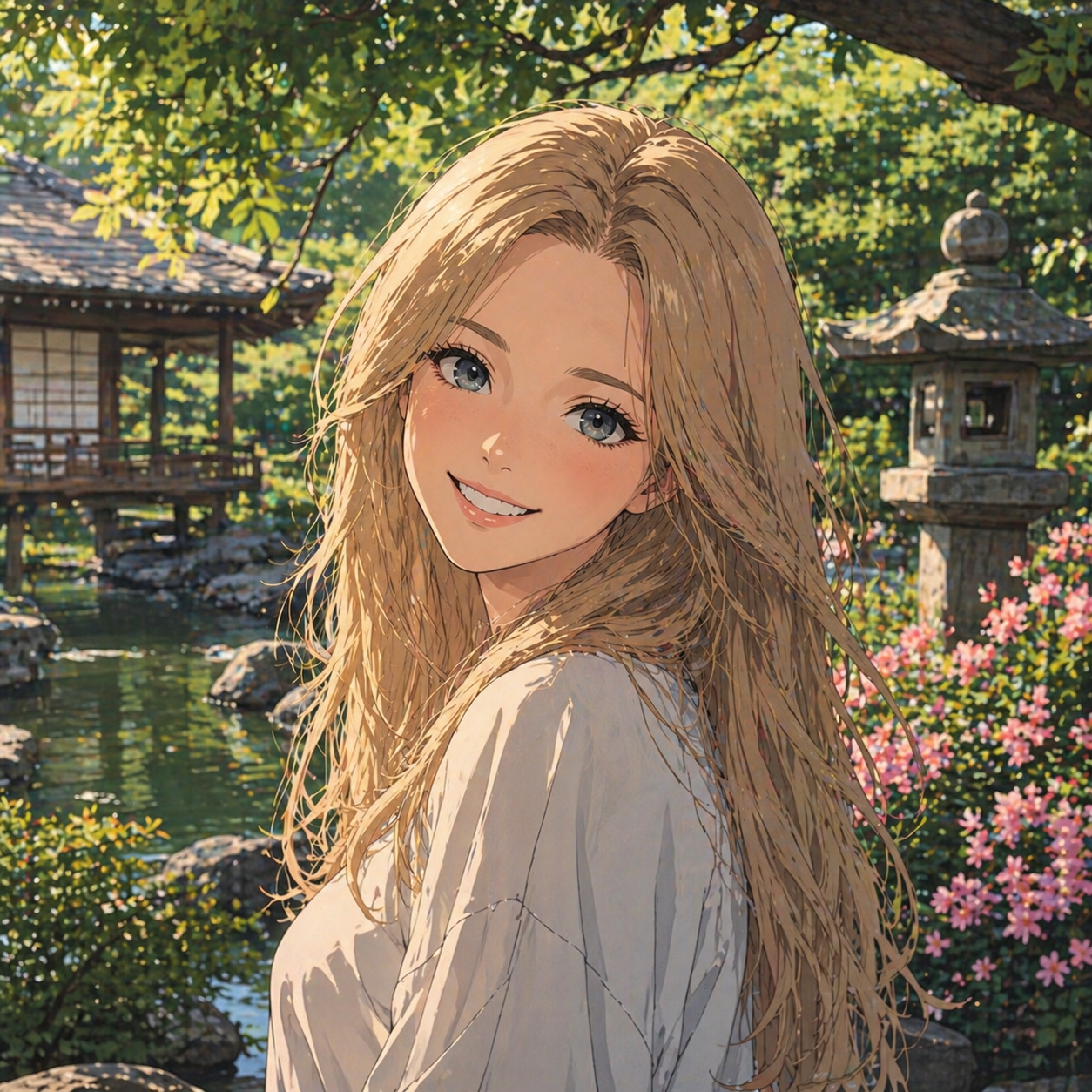 Anime style
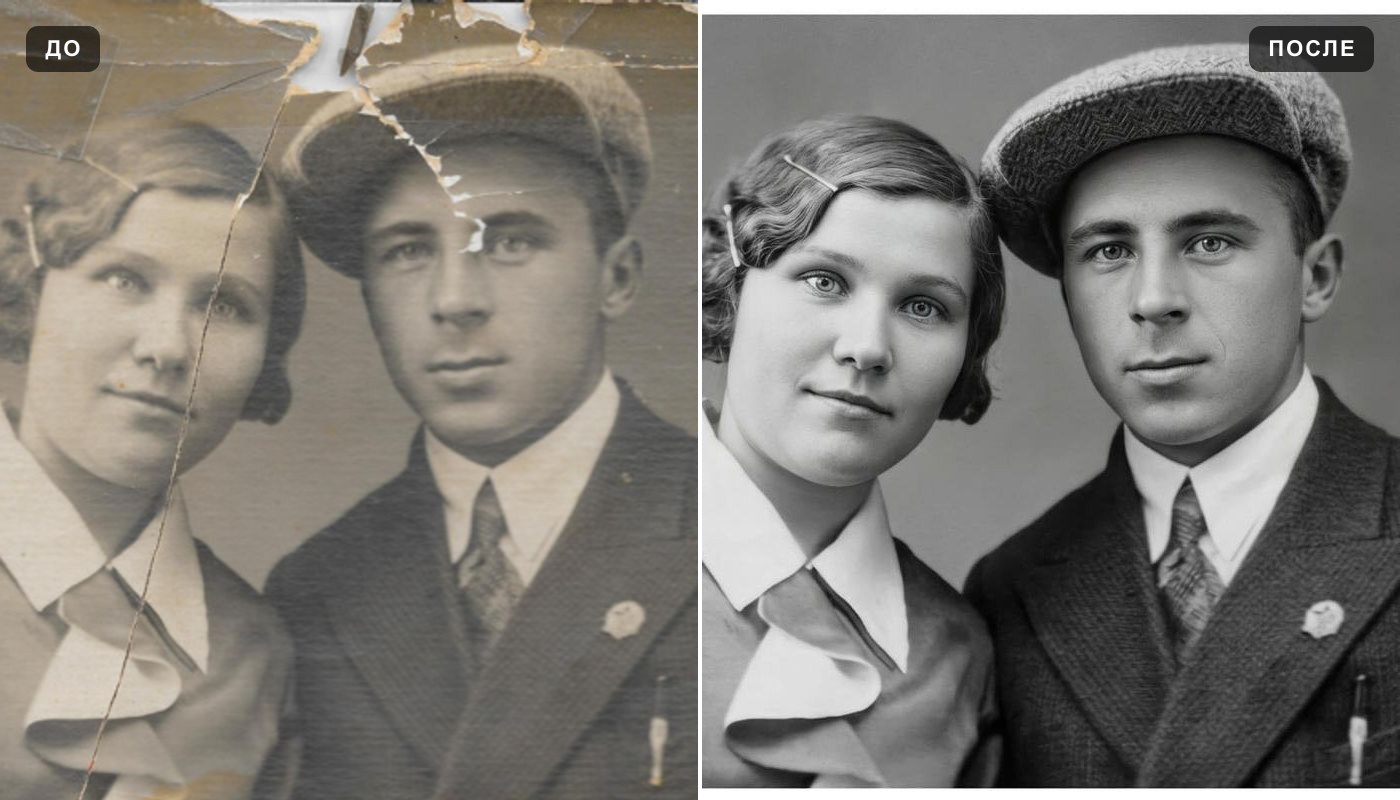 Photo enhancer
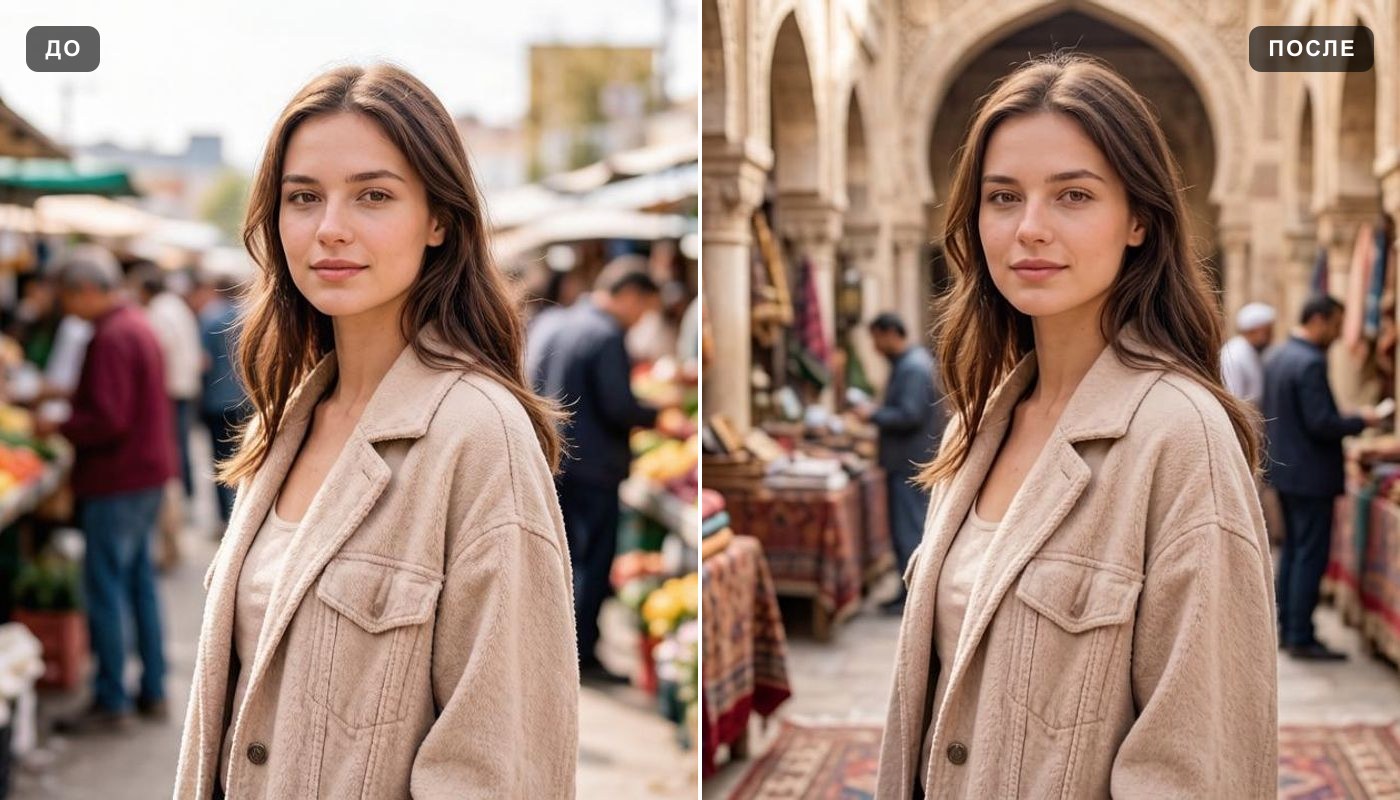 Change background
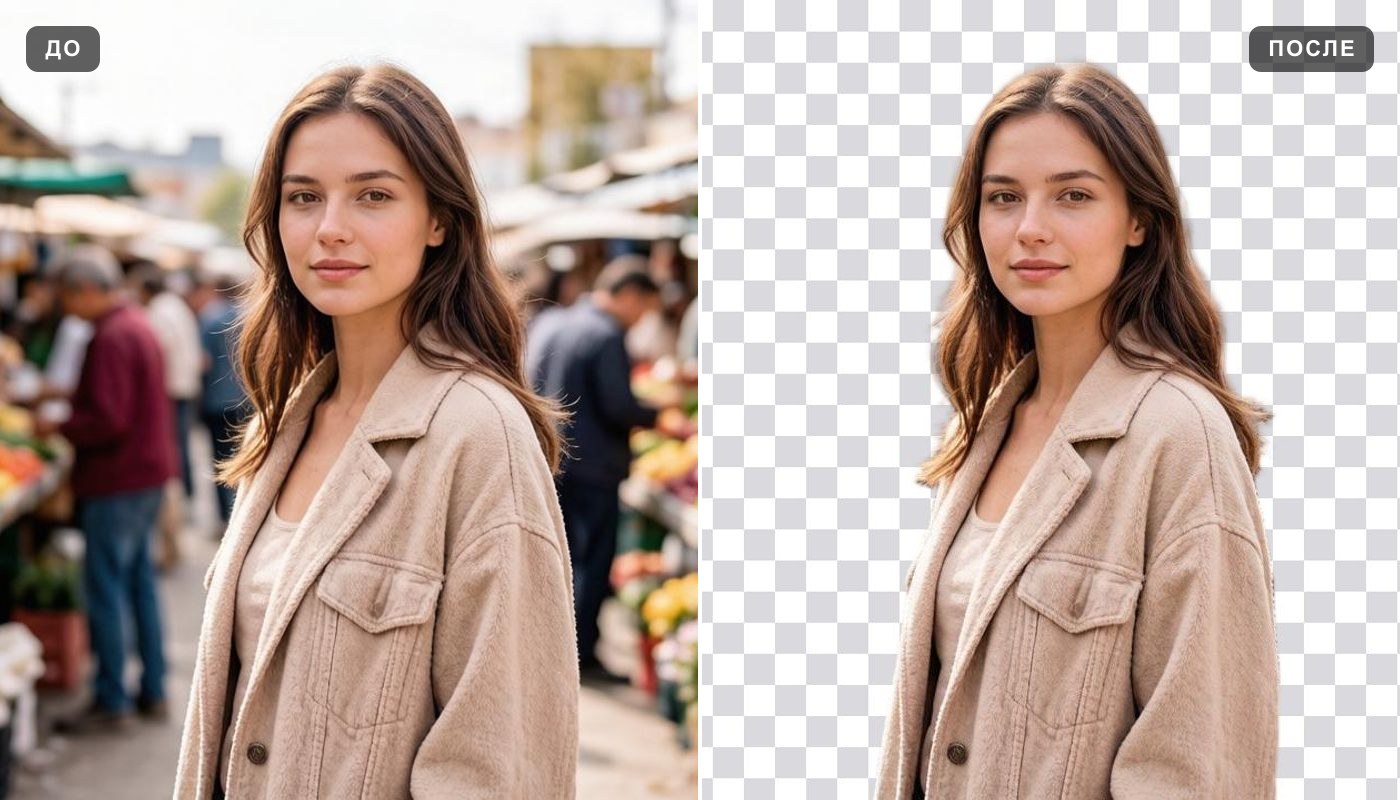 Background remover
 Unblur image
 Image upscaler
 Colorize photo
 Oil painting