AI Greeting Card Maker: Make a Card From a Photo
Upload a photo, pick the Occasion and who it is For, and type the exact words you want on the card. The AI builds the whole thing in one pass: background, framing, decoration and the lettering drawn right inside the picture, so there is no text layer to drag around and no template to fill in. What comes back is an image — save it, put it in a message, or print it at home as a one-sided card. Short lines work best, because every letter is drawn rather than typed.
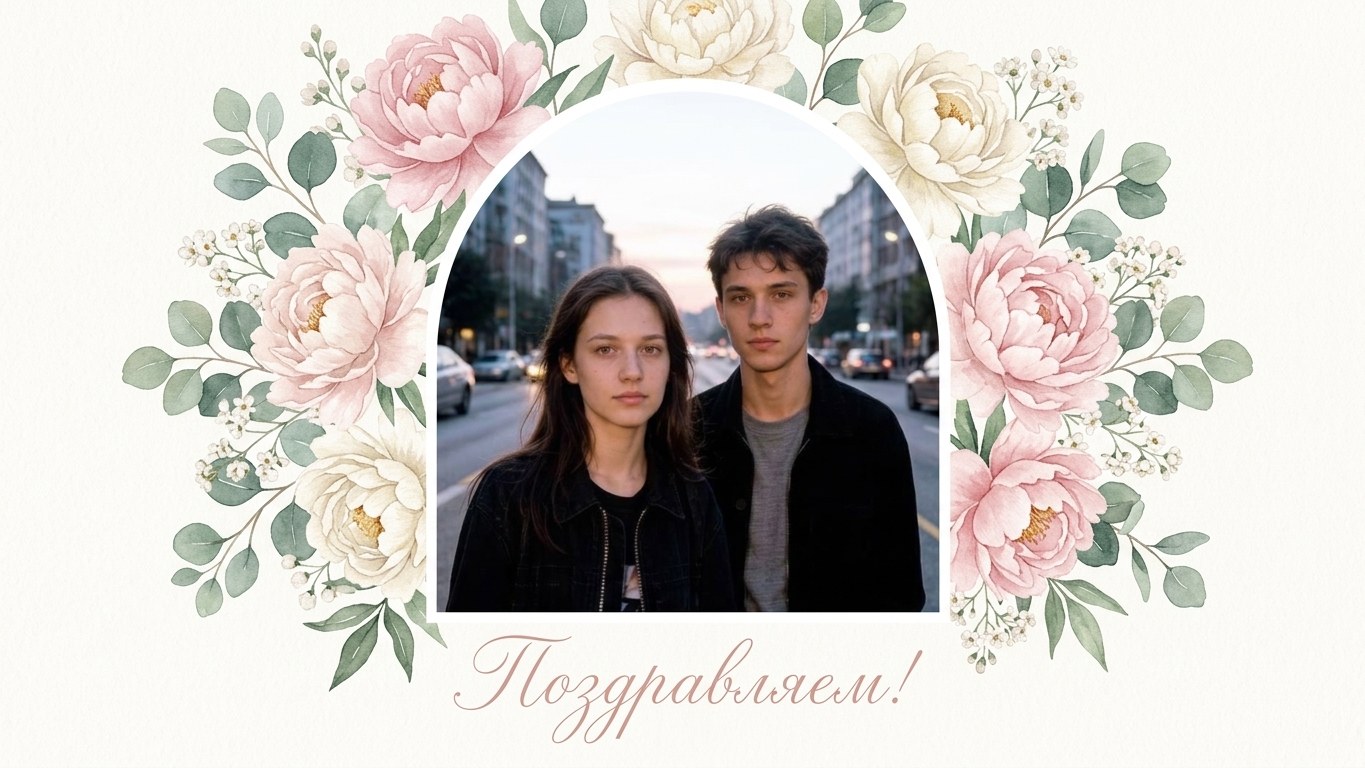
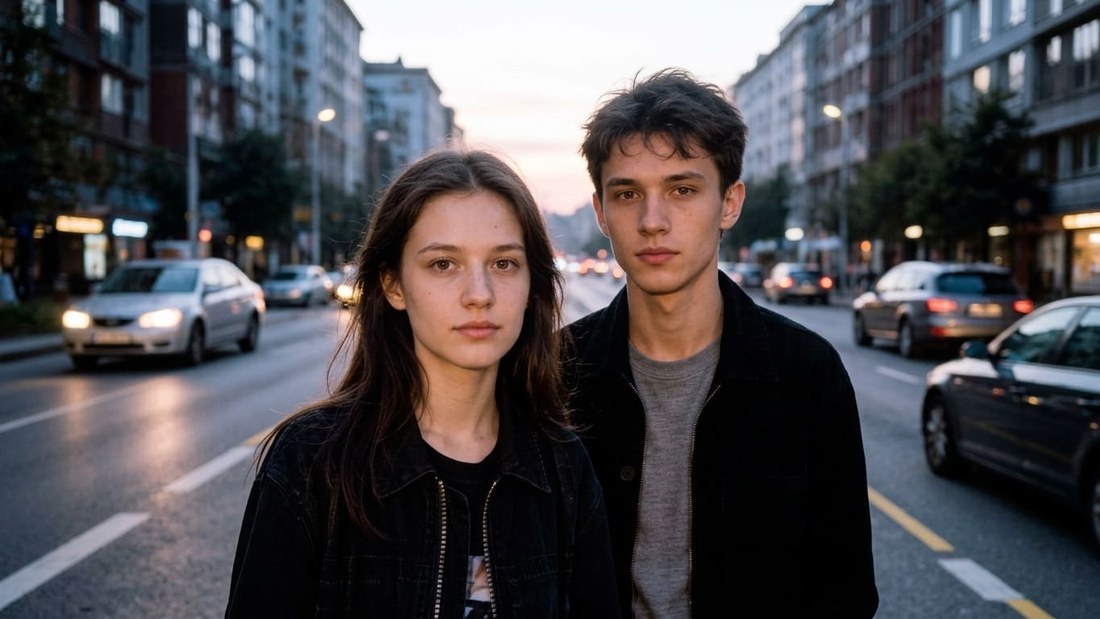 BeforeAfter↔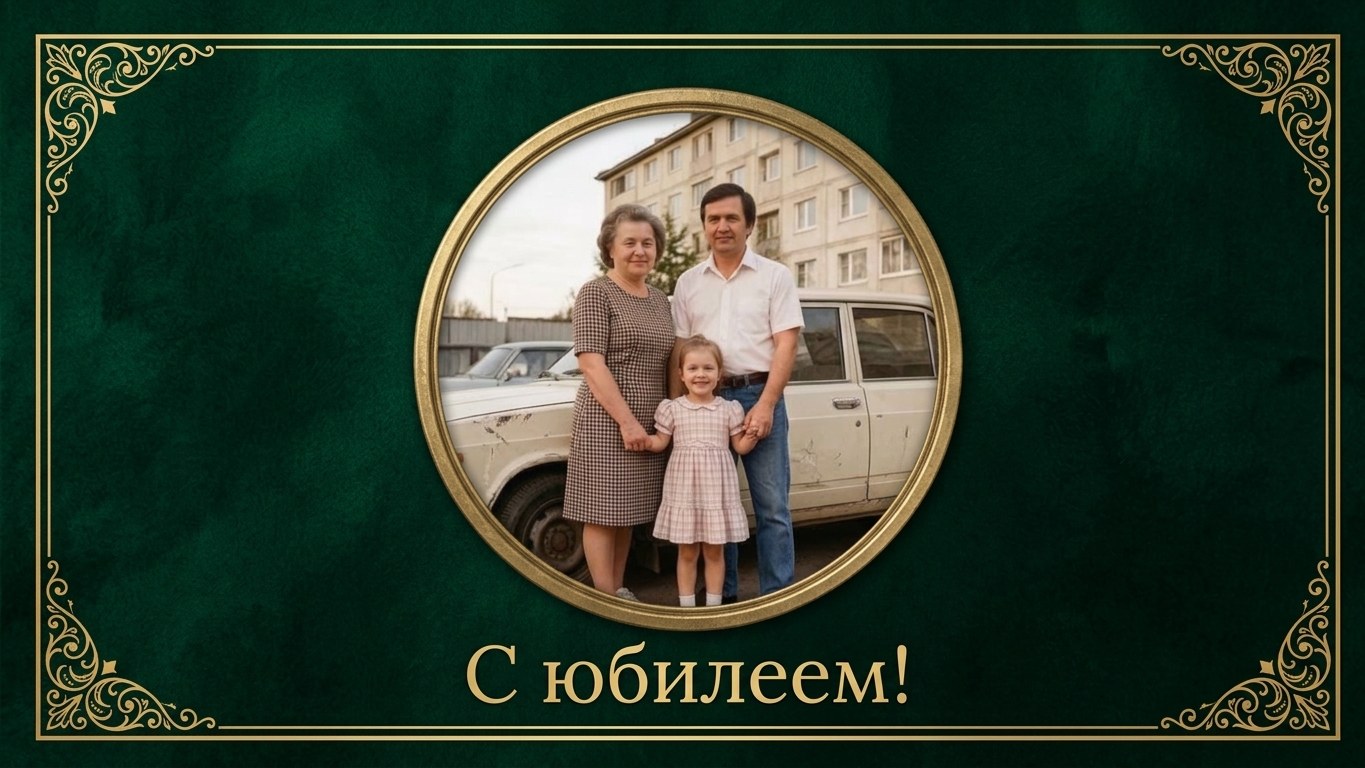
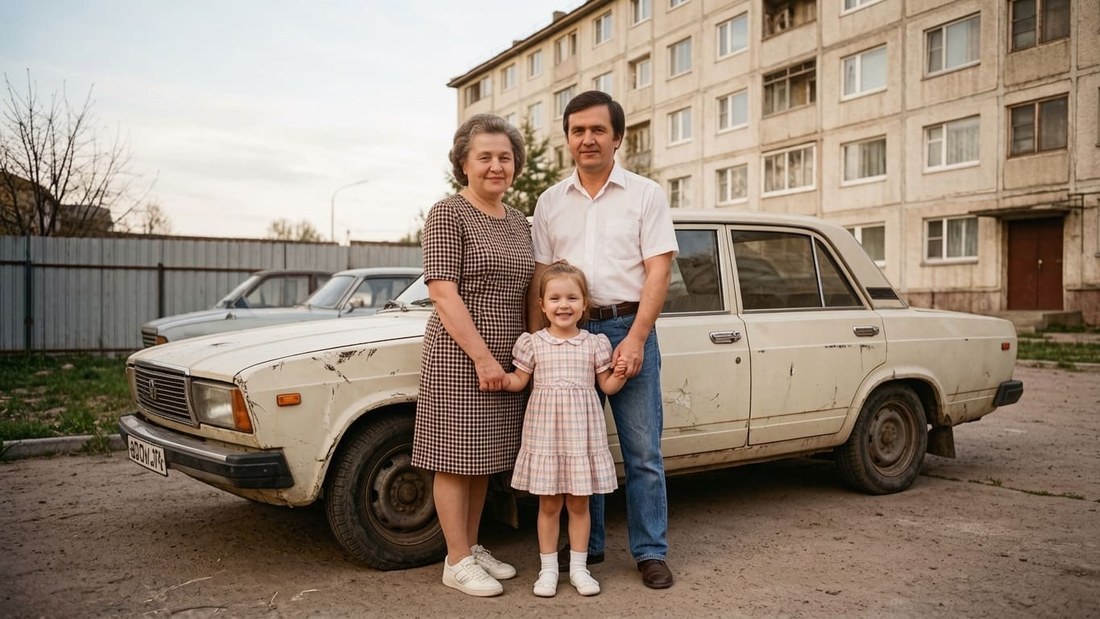 BeforeAfter↔
How to make a greeting card in four steps
Both lists are optional — you can leave either one untouched and describe what you want in words instead. The message is not optional in practice: type the greeting yourself, in quotes, exactly as it should read on the card.
One picture, not a template you fill in
Most card tools hand you a frame and ask you to drop a photo into the hole and a text box on top. This works the other way around: the photo and the design are rendered together, so the background, the light and the decoration are built around your picture rather than around a placeholder. A vertical shot does not get squeezed into a horizontal slot.
The lettering is part of that same picture. There is no separate text layer to move, no font menu, and nothing to line up by hand — which is the good news and the catch at the same time. Every letter is drawn, so a short line is drawn accurately and a paragraph is where things slip. Keep the greeting to a handful of words and check it before you send it.
The occasions on the list
Under the photo there are two dropdowns: Occasion and For whom. These are the seven occasions, and picking one changes the whole look of the card, not just a word on it.
Worth saying plainly, because people look for it: there is no Christmas setting on this list. New Year is the only winter design here, and it is a lights-and-gold look rather than a tree, a nativity or stockings by the fireplace. If you want something closer to Christmas, say so in the message field and steer the decoration in words.
Who it is for — and what to write for each
The second dropdown changes how the card carries itself. The same birthday looks different for a five-year-old and for someone on your team. Here is what each one leans toward, and the angle that usually saves people the most time — figuring out what to actually say.
What to write in the card
Copy a line, swap in the name, and paste it into Additional wishes along with any note about the design. Every one of these is deliberately short: the words are drawn into the picture, and a line you can read at a glance is a line that comes out clean.
Birthday, for Mom
Card text: "Happy Birthday, Mom." Or, with one specific thing in it: "Happy Birthday, Mom. Thank you for everything." Warm colors, soft florals, the photo kept large.
Birthday, for Dad
Card text: "Happy Birthday, Dad." A drier one that still reads warm: "Happy Birthday, Dad. Still the loudest one here." Keep the decoration plain, no flowers.
Birthday, for a coworker
Card text: "Happy Birthday, Sam!" Or, if you want a second line: "Happy Birthday, Sam. Glad you are on this team." Neutral palette, tidy layout, nothing that needs explaining to the rest of the office.
Birthday, for a friend
Card text: "Happy Birthday, Jess!" Add the running joke if you have one, but keep it to about six words so every letter stays sharp.
Birthday, for a kid
Card text: "Happy Birthday, Leo!" Numbers are fine and often the point: "Leo is 7!" Ask for big bright letters and simple shapes around the photo.
Birthday, for Grandma
Card text: "Happy Birthday, Grandma. We love you." Large legible lettering, gentle colors, and the photo as the biggest thing on the card.
Thank you
Card text: "Thank you." Name the person if it is for one person in particular: "Thank you, Ms. Rivera." Cream paper, a watercolor stroke, small flowers.
Wedding
Card text: "Congratulations, Emma and Jack!" Two names are already a lot of letters, so let that be the whole line. Arched frame, ivory and dusty pink, plenty of white space.
Anniversary
Card text: "Happy Anniversary." With a number: "Happy 40th, Mom and Dad." Deep color, thin gold border, the photo in a round medallion.
Just because
Card text: "Miss you." Or "Thinking of you." Or "Thank you for yesterday." Calm pastel colors, almost no decoration, a lot of air around the words.
Condolences
Card text: "With deepest sympathy." Or, more personal: "Thinking of you, Dan." Muted colors, a single branch or candle, nothing bright and nothing celebratory.
What the finished cards look like
Each occasion is a designed layout, not a color swap. This is what you are actually choosing between.
Your photo sits in a rounded white-bordered frame, tipped slightly like an instant print that was dropped on a table. Around it: paper confetti, dots and small stars on a colored ground, in mint, coral and warm yellow. The greeting runs across the top corner in large handwriting.
Cream paper texture with one broad watercolor stroke across the frame. The photo is smaller here and pushed toward an edge, with little wildflowers beside it. Milk white, powder and ochre, and the words in large calligraphy laid over the stroke.
The formal one. Deep emerald or burgundy ground, a thin gold border with patterned corners, your photo in a round medallion in the middle. Dark, rich color with matte gold, and a classic serif line under the medallion.
The photo is set into an arch with a rounded top. Watercolor peonies, eucalyptus and small white flowers around it, plenty of empty light space, ivory with dusty pink and muted green. Fine calligraphy under the photo.
Calm and close to plain. A large photo across the upper two thirds and a wide flat band below it for the words. Sandy, dusty pink and milk tones, with one thin line or a small sprig as the only decoration.
The photo fills the frame and darkens toward the edges. Over it: snowflakes, string lights rendered as soft blurred circles, and a thin gold border around the whole card. Deep blue, emerald and gold, with an ornate line in the upper third.
Deliberately quiet. The photo sits centered in a thin pale frame, desaturated almost to grey. A branch or a single candle is drawn in outline to one side. Grey-olive, warm grey and ivory, no shine, no confetti, no bright color, and the words set small in a calm serif.
You are not stuck with any of it. Anything you write in Additional wishes steers the result — ask for a different palette, less decoration, a bigger photo, a handwritten line instead of a serif one. If a run comes back wrong, changing one sentence and running again is faster than fighting with it.
What you get, and what to do with it
This is the part worth reading before you start, because "card maker" means different things at different places. What this tool produces is an image file of the front of a card. That is the whole deliverable, and on this tool the Download button is open from the very first run — you do not have to buy anything to save the file.
What you can do with that image:
What it does not do, so you are not surprised:
Making it personal: the photo, the name and the tone
Three things do almost all the work here. The photo is the reason a homemade card beats a stock one — a picture of the two of you at the lake carries more than any design ever will. Pick a clear, well-lit shot where faces are large enough to read; a dark, tiny, heavily compressed photo gives the model less to work with and the result softens.
The name is the difference between a card and a graphic. Write it into the greeting exactly as it is spelled, and if it is an unusual spelling, keep the rest of the line short so there is less competing for the model's attention.
The tone is yours to set in words, and the field takes plain instructions. Warm: "soft, warm and sincere, nothing flashy." Funny: "playful and a little silly, bright colors, hand-drawn feel." Formal: "restrained and elegant, plain layout, no confetti or glitter." Quiet, for a condolence card: "calm and understated, muted colors, no decoration beyond a single branch."
One honest note about faces, because this is a card of someone you care about. The whole image is generated, and the photo is redrawn as part of it — this is not a frame pasted around an untouched file. On a clear photo the likeness usually holds well, but features can drift, especially on small, dark or blurry source shots. Add "keep the faces and expressions unchanged" to your instructions, look at the result properly before you send it, and run it again if the person came back looking like a cousin.
Formats, size and printing at home
Nothing to install — the page opens in a browser on an iPhone, an Android phone, a laptop or a tablet, and you pick one photo yourself rather than handing over your camera roll. Results stay on your account and open from any device you sign in on.
What you can upload is what the upload panel says: JPG, PNG, WEBP — up to 10 MB, with no limit on the resolution of the original. HEIC and HEIF files from an iPhone are not accepted — either set the camera to "Most Compatible", or share the photo once to yourself, which converts it to JPG along the way.
Under Quality there are two modes. Standard returns the card at 1024 px on the long side, Pro at 2048 px. For something you are only going to text to someone, Standard is plenty. If you plan to print it, choose Pro — more pixels is the only thing that helps on paper.
Printing is a home-printer job: one image, one side, whatever paper size you feed it. There is no folded template and no inside page. If you want it larger than the file comfortably allows, run the finished card through the image upscaler first — it redraws detail instead of stretching pixels, so the lettering stays crisp at a bigger size.
Who can see your photo
A card usually starts with a family photo, sometimes a photo of a child, sometimes a photo tied to a funeral. So it is worth being clear about where it goes. You upload one file for one run; the card lands in History on your account, and the finished image travels no further than wherever you send it yourself.
There is one setting to know about. On the higher paid plans a Private switch keeps a run out of the public feed — with it on, only you. Without it, a result may appear in the site gallery. The switch sits next to Create and has to be on before you start, not after; on a free account it opens an upgrade window instead. If the photo is one you would not post publicly, decide about this before you press Create.
Free greeting card maker: what you get and the limits
You can try it for free. A new account gets two free generations in total — not two a day and not two a month — and this tool is one of the ones they cover. Free runs use Standard quality; Pro runs are part of a paid plan. After that, work continues on a plan or a pack, and the terms are on the pricing page.
Two things to know up front. Saving is not one of them: on this tool Download works from the first card, free run included. What a free run does carry is a light ai.neiroset.com signature in the bottom-right corner of the image. It stays until the account makes a purchase — any purchase removes it permanently, including from cards you already made.
There is also a pace limit of six runs a minute per account, which normal use never reaches. Every version stays in History, so you can make three takes of the same card and pick the one where the lettering came out cleanest.
Do I need an account?
Yes. You can fill in the whole form as a guest, but pressing Create opens the sign-in window — without an account there is nowhere to keep the cards, and they would be gone the moment the tab closed.
Where people use it
Frequently asked questions
How do I make a greeting card from a photo?
Upload the photo, pick the Occasion and For whom from the two dropdowns, type the words you want on the card into Additional wishes, and press Create. The finished card appears in History and can be downloaded right away.
There is a typo in the words on the card. What do I do?
Run it again — the lettering is drawn into the picture, so there is no text box to click and correct. Three things make the next run much more likely to come out clean: shorten the line, write it in quotes exactly as it should appear, and drop anything optional. Names and unusual spellings are where letters slip most often, so a card that says just "Happy Birthday, Anya!" is far safer than a full sentence. Always read the result before you send it.
Is there a Christmas card option?
Not as a preset. The occasion list is Birthday, New Year, Wedding, Anniversary, Just because, Thank you and Condolences. New Year is the winter design — snowflakes, string lights, a gold border, deep blue and gold — and you can steer it closer to what you want by describing the decoration and writing your own greeting.
Can you email or text the card to the person for me?
No. You get an image file and you pass it on yourself, however you normally would. There is no delivery, no recipient address and no scheduling for a particular morning.
Can I print the card?
Yes, as a one-sided image on your own printer or as a photo print. What you will not get is a folded print file — no two-page PDF, no blank inside, no bleed or fold marks. Pick Pro for the extra resolution, and use the image upscaler if you want it bigger still.
Will the person in the photo still look like themselves?
Usually, on a clear and well-lit photo. But the card is generated as a whole image, so the photo is redrawn rather than pasted in, and features can drift — more so on small, dark or blurry originals. Ask it to keep the faces and expressions unchanged, and compare against your photo before you send the card.
Can I make an invitation with it?
It makes a greeting card image, which you could certainly write an invitation on. It is not an invitation service, though: there is no RSVP, no guest list, no addresses and nothing mailed out.
Can I make a card without a photo?
Not here — this tool builds the card around a picture you upload. The photo is the point of it.
My photo is old, faded or black and white. Will it still work?
It will, and an old family photo makes a lovely card. For a better starting point, run it through colorize photo or the photo enhancer first, then bring the improved version here.
How long is the message allowed to be?
The field itself takes plenty of text, but the practical limit is what the card can render cleanly. A few words is reliable; a whole paragraph is not. If you have more to say, say it in the message you send along with the card.
Does it work on a phone?
Yes. The page opens in a mobile browser on iPhone and Android, and there is no app to install.
Try other tools
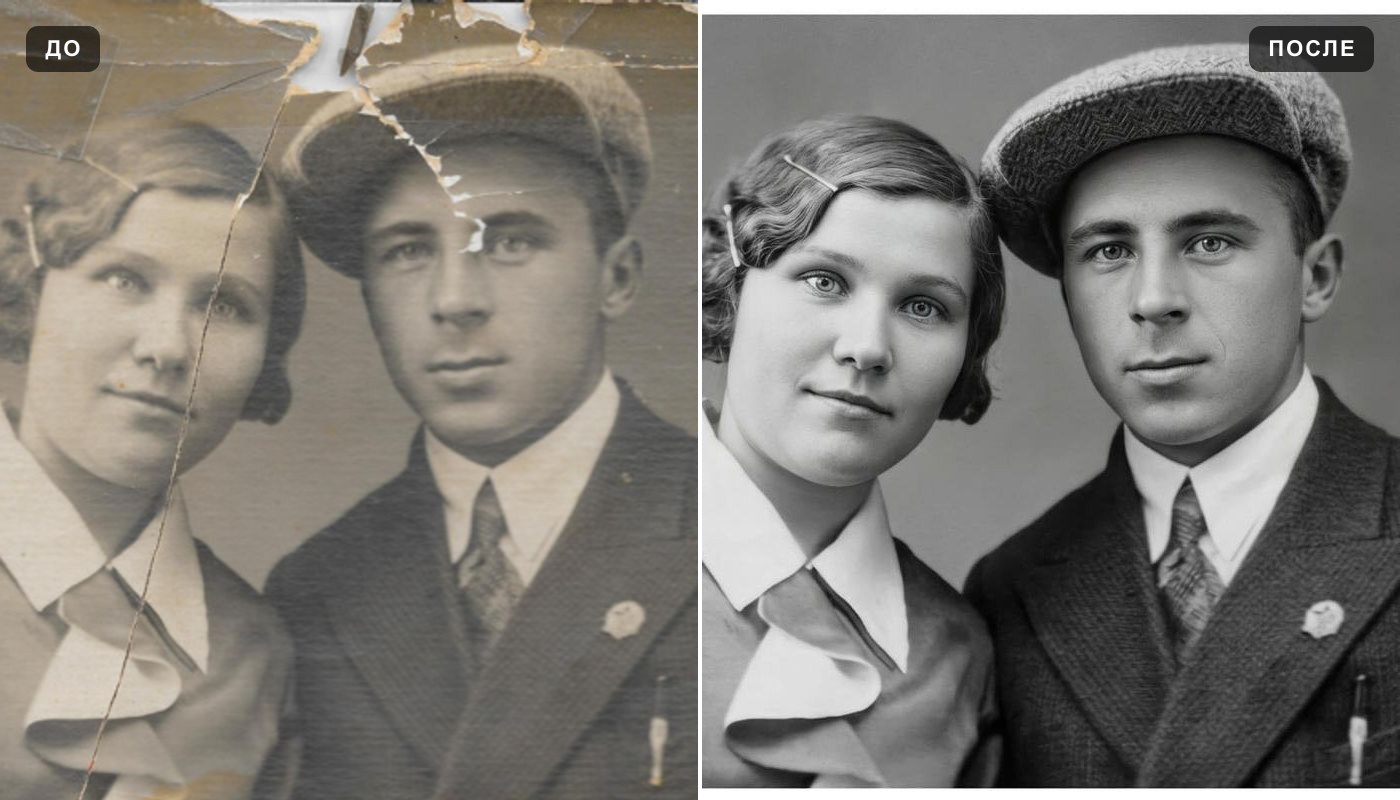 Photo enhancer
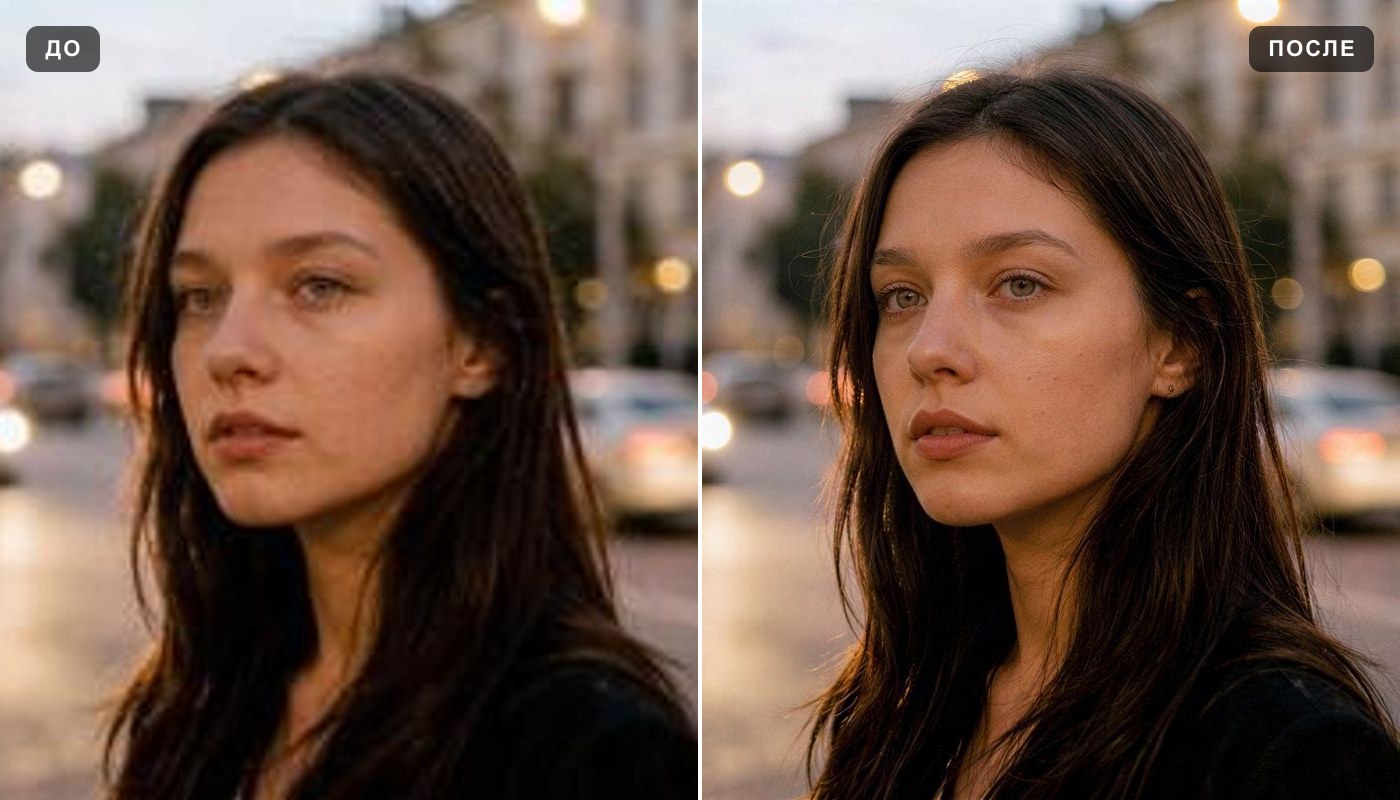 Image upscaler
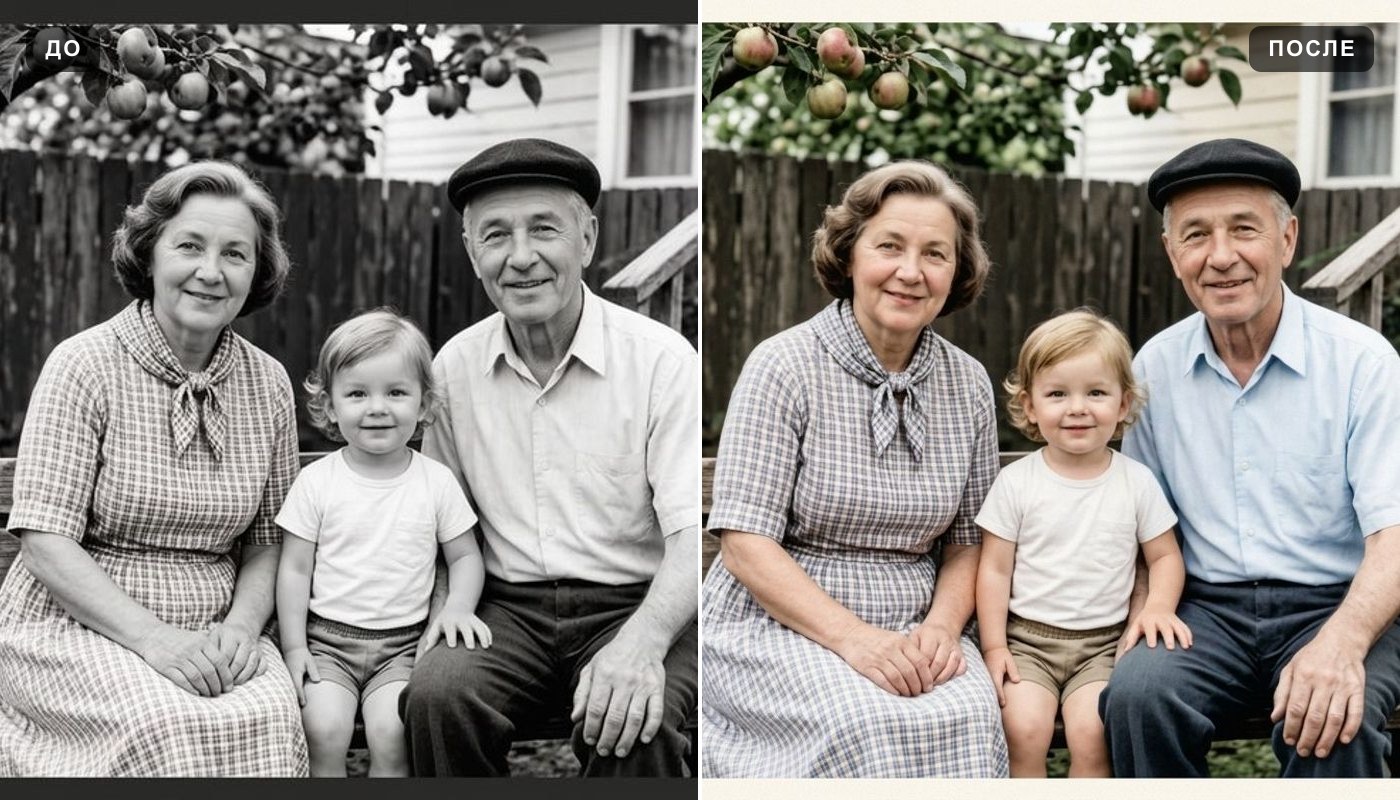 Colorize photo
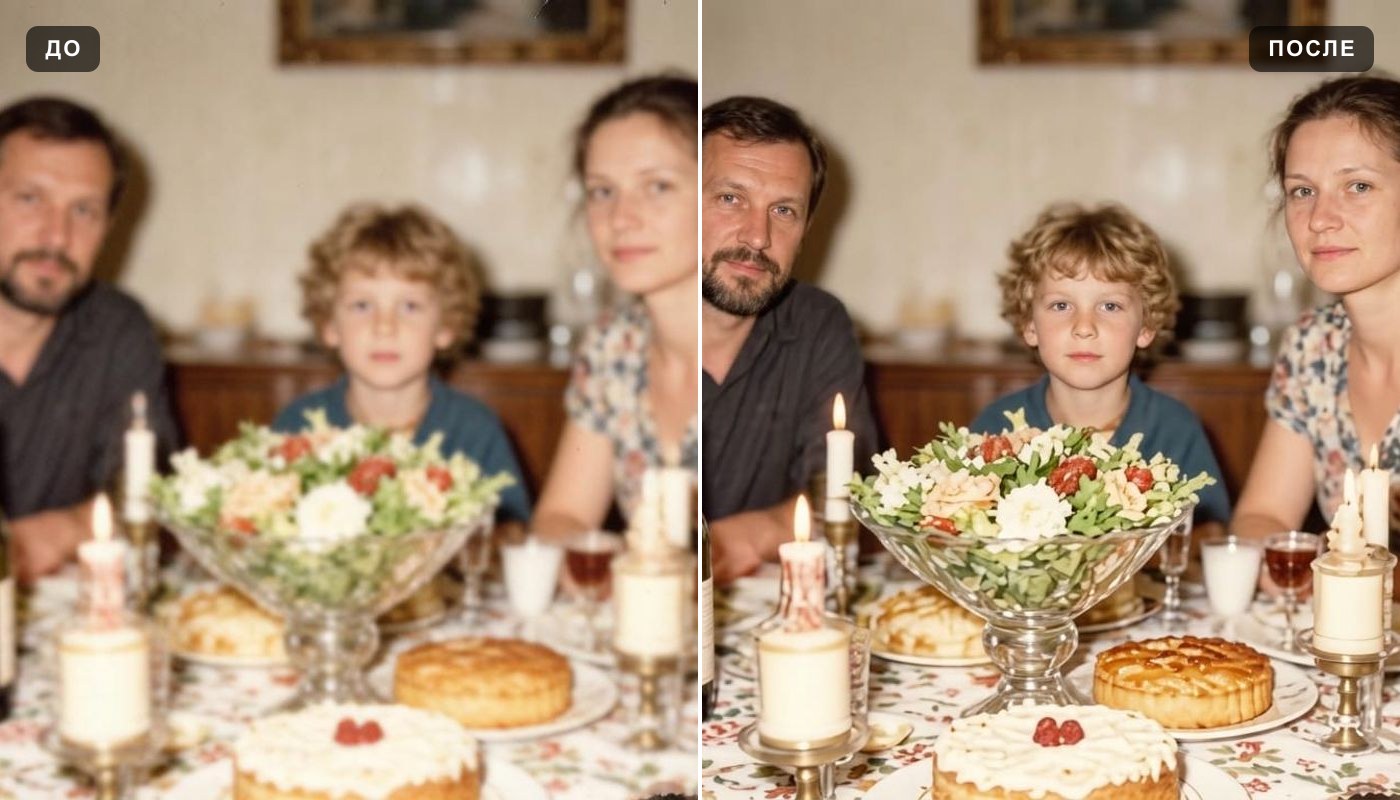 Unblur image
 Background remover
 Change background
 Oil painting
 Anime style