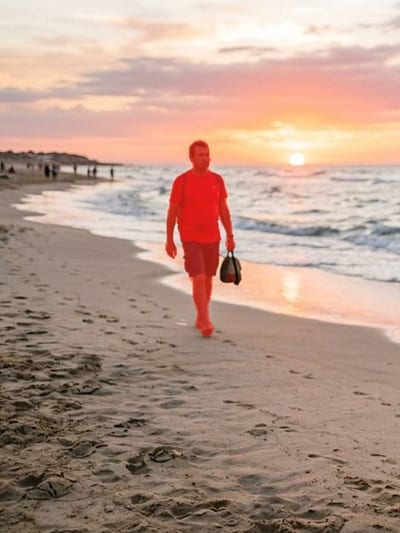
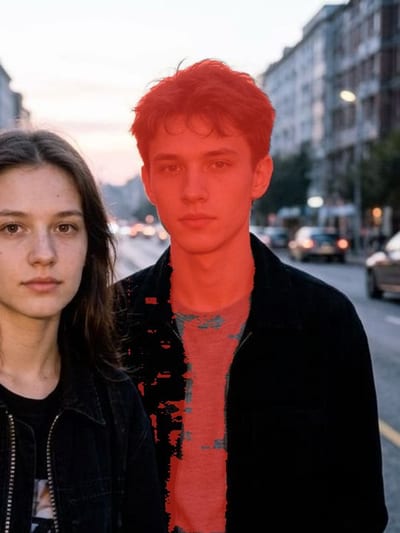
Remove a Person From a Photo Online
Upload the shot and click the person you want gone — the model traces their outline itself, so there is nothing to paint by hand and nobody to describe in words. Type an instruction that starts with Remove, press Apply, and the space they took is filled in with what was behind them: the rest of the beach, the wall, the sidewalk, the shadow on it. Everyone else in the frame is meant to come back with the same face, the same pose and the same place, and the picture keeps the size and the crop you uploaded.
Drop your photo here
JPG, PNG, WEBP — up to 10 MB. You will select the object right on the photo.
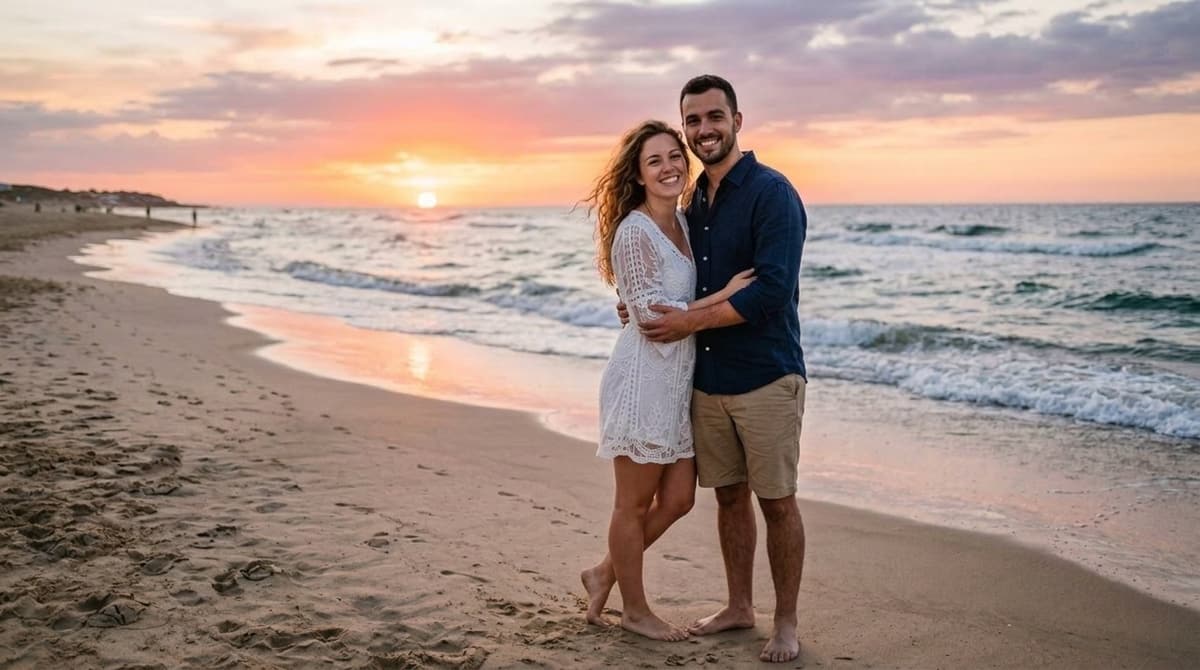
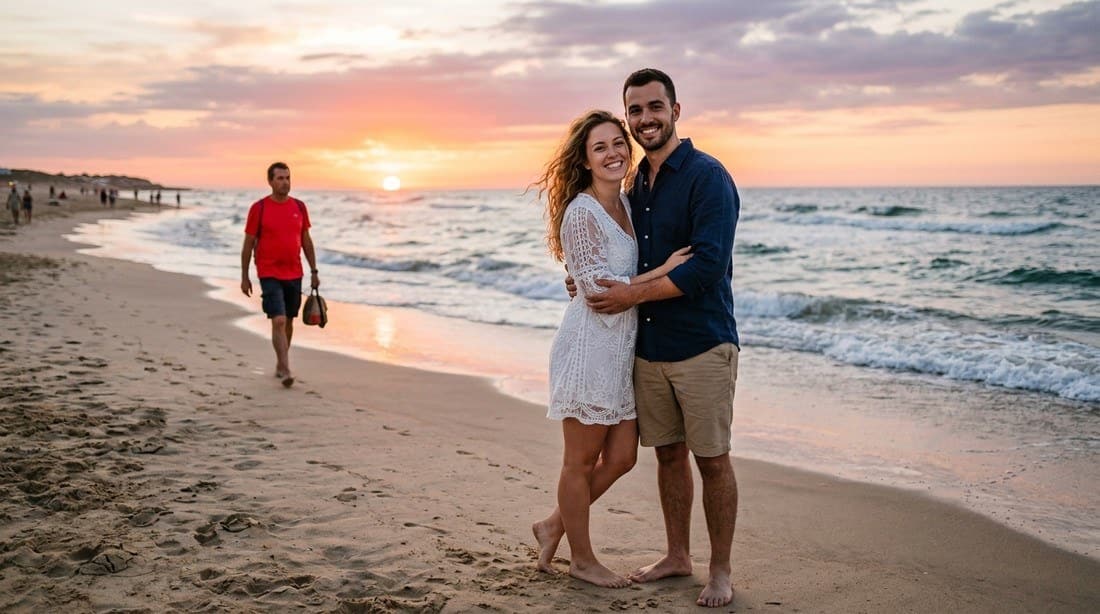 BeforeAfter↔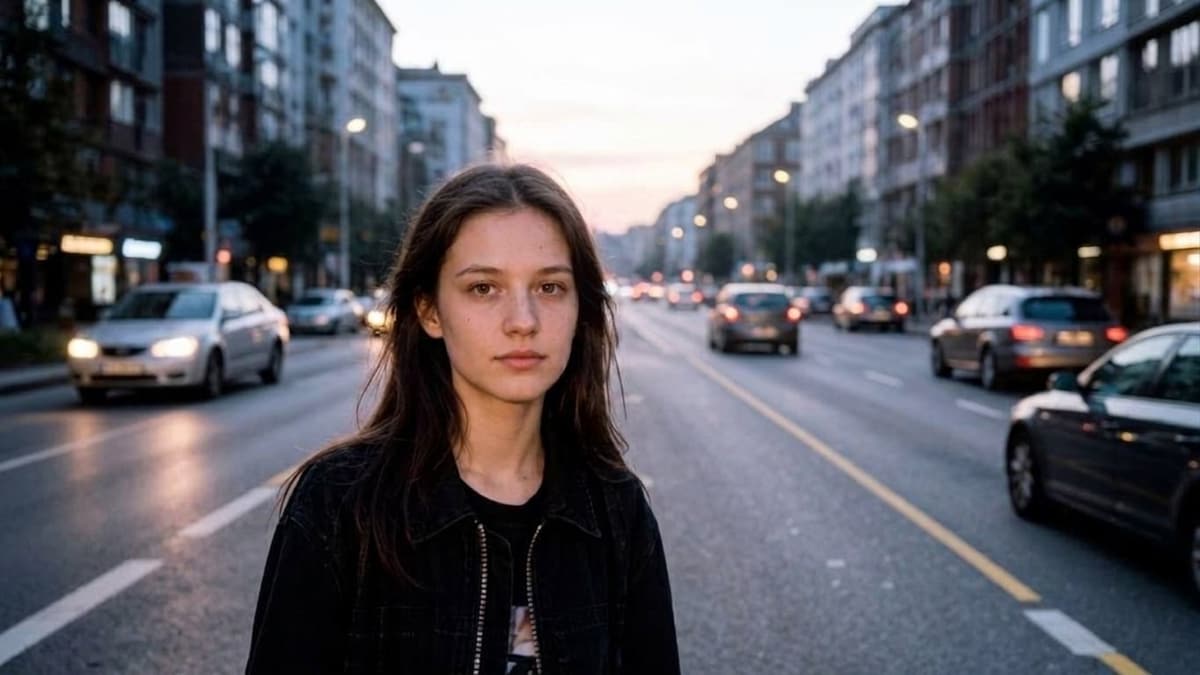
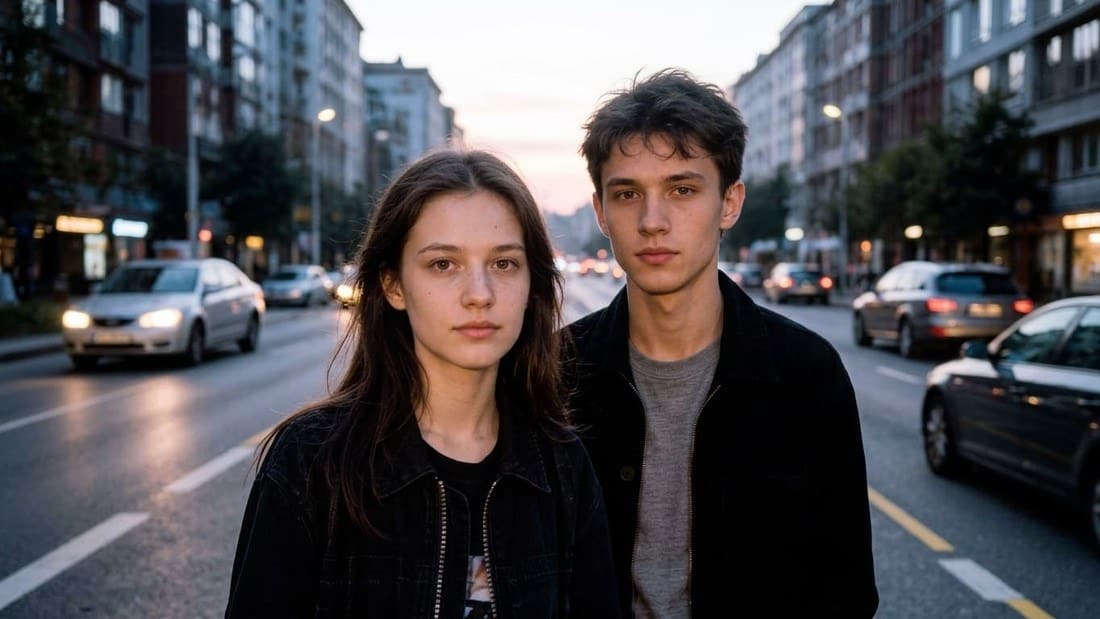 BeforeAfter↔
How to remove a person from a photo
The first thing on this page is not a form, it is the editor. You work on your own picture from the first second: upload it, press on the person who should not be in it, and say what happens to them. Three steps, and the middle one is a single click.
Notice what is missing: there is no field asking you to describe which person to take out, and no silhouette to trace before you can begin. The click is the selection; the line over the frame is only where you say what should happen to it. Everything runs on this page in a browser, on a phone as well as on a laptop, with nothing to install.
One click instead of a brush
Almost every remover on the web starts by handing you a brush and asking you to paint over what you want gone. For a bin or a road sign that is tedious. For a human being it is genuinely miserable: hair is not a shape a fingertip can follow, and neither is the gap between an elbow and a hip, the strap of a backpack, a dog's leash, or the two-pixel slice of sky between someone's fingers. Paint too little and a sliver of the person stays. Paint too much and the repair starts eating the person standing next to them.
Here the tracing is the model's job. You press once on the person and the outline appears around them, follicles and shoelaces included. It is the same gesture your phone has already taught you: point at the thing, not around it.
The brush is still in the toolbar, where it belongs — as a correction, not as the entrance. Widen the selection with Brush and Add to take the shadow on the sand along with the person, trim it with Eraser and Subtract where it creeps onto someone's sleeve, change Brush size for the fiddly parts, and start over with Reset selection or Ctrl+Z. A person remover is only as good as the outline it starts from: a selection that stops at the ankles will leave the shoes standing there.
Everyone else comes back the way you photographed them
The thing people worry about on this page is not the hole where the stranger stood. It is the quiet damage: that the tool will hand back a photo where your mother's smile is slightly wrong, where a friend's nose is not quite his, where the person you wanted to keep has been redrawn along with the one you wanted gone.
So the selection is the whole instruction. The area you highlighted is the only area the model is told to clear, and everything outside it — faces, poses, hands, hairlines, clothing, the color of the sky — is marked as the part that has to stay. The frame also comes back at the size, the angle and the crop you uploaded: it is not zoomed in a little to hide the repair, and the composition is not nudged sideways.
What we will not tell you is that nothing outside the selection can ever move. The result is a newly rendered picture rather than your file with a patch glued onto it, and on a busy frame something small can shift. That is exactly why the comparison sits one press away: hold Before / after and the original comes back under your cursor, and every step stays in Versions, so Original is always one click behind you.
For a photo that matters — a wedding album, a portfolio, a family print — look at the faces at full size before you send it anywhere. That habit costs ten seconds and it is the honest answer to a fear no tool can promise away.
Travel shots: remove background people from an image
You waited for a gap in front of the fountain and never got one. That is the single most common reason people land here: a good frame at a famous place with fifteen other visitors in it. A national park overlook at noon, a museum hall, a boardwalk in July, the steps everybody photographs.
Background figures are the easiest case there is, because what has to be rebuilt behind them is simple and repetitive: sand, water, grass, sky, pavement, a stretch of stone wall. Take them out one at a time — each edit becomes its own entry in Versions, so you can walk the picture from a crowded scene to a quiet one and step back if a run goes wrong. A whole packed row of people across the frame is a different matter; that is in the limits below.
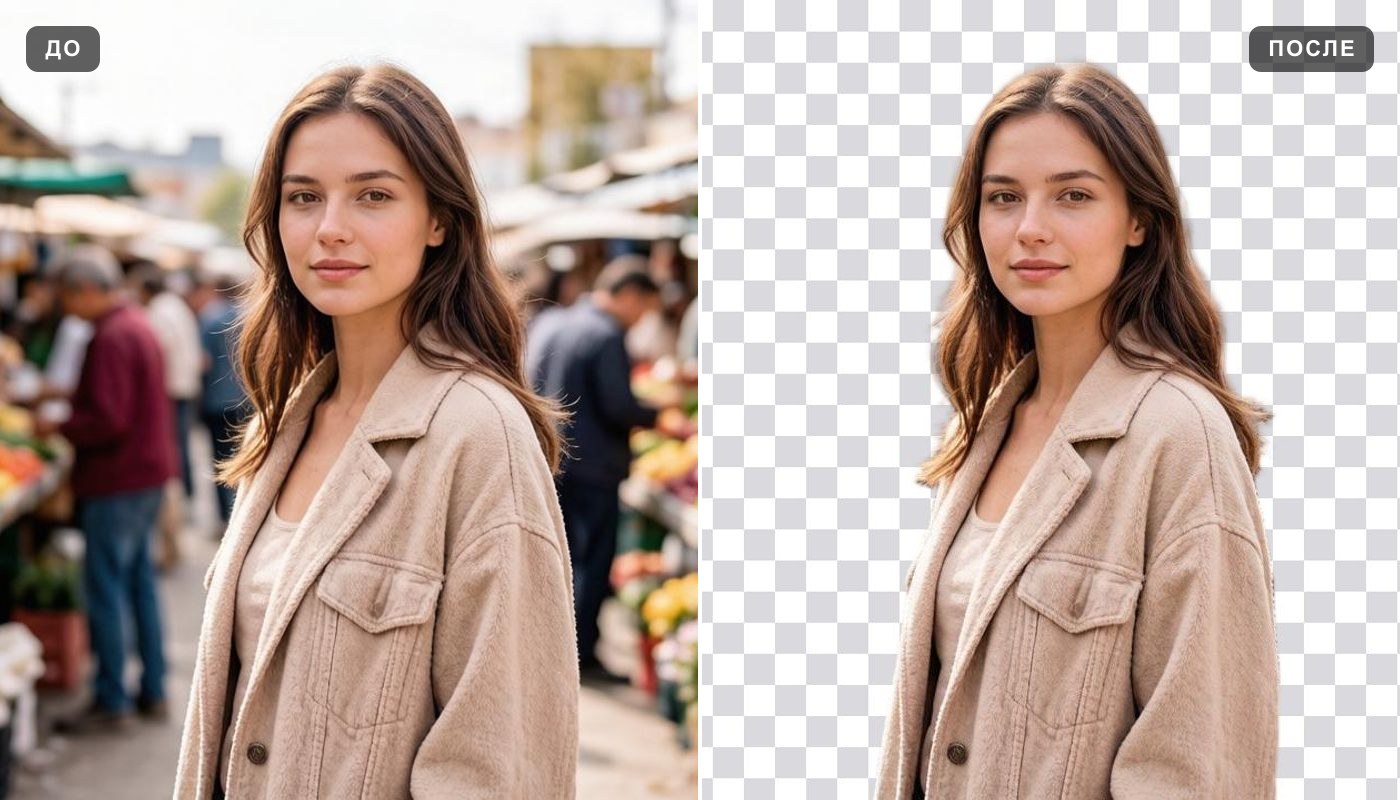
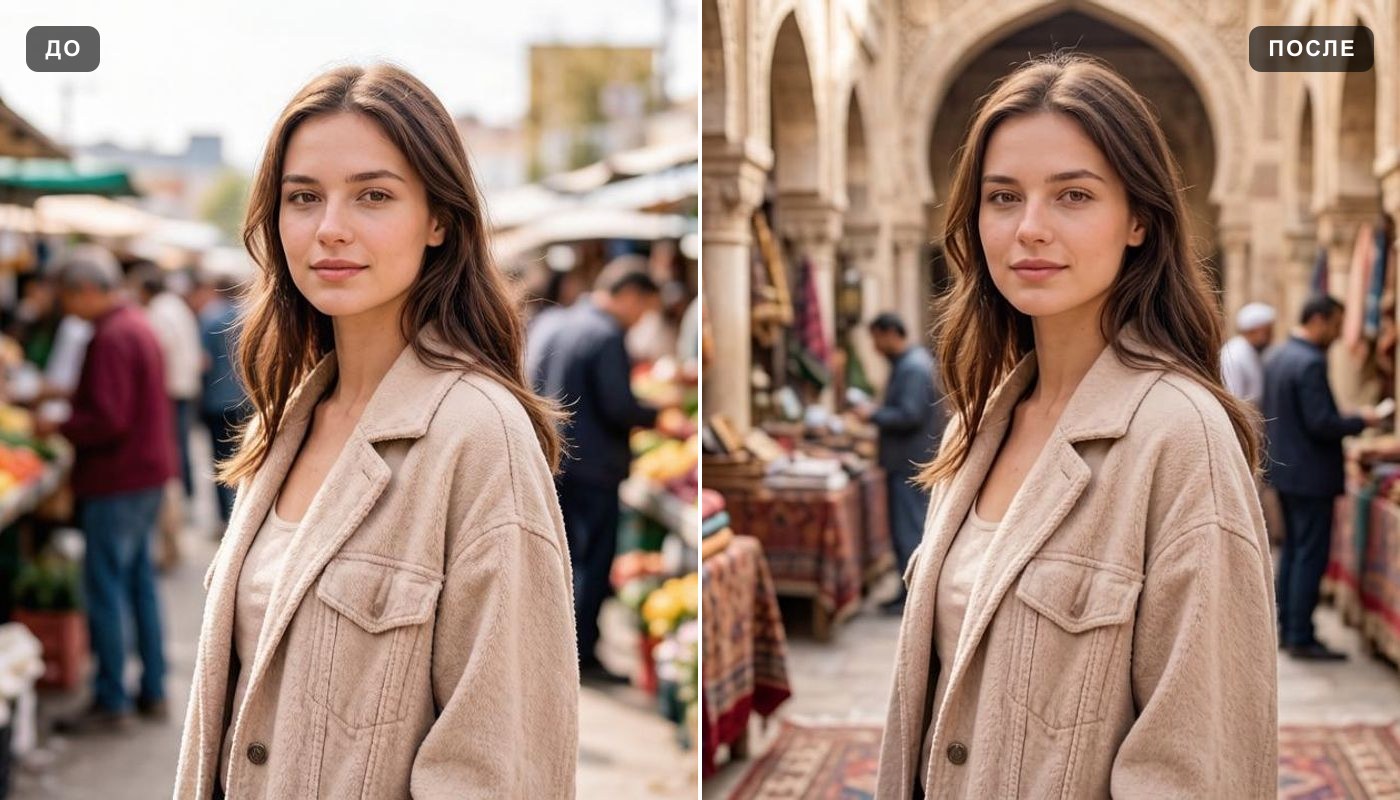
One phrase worth untangling, because it gets used two ways. This page is about the people standing in the background of your photo. If what you want is the background itself gone, leaving the subject on a transparent cutout, that is the background remover; if you want a different scene behind them instead, that is change background.
The photobomber behind your family shot
The stranger who spotted the camera and jumped in. The kid cartwheeling past the back of a beach portrait. The guy mid-stride between you and the sunset, arms out, delighted with himself. A photobomb remover is a narrow job with a clear brief: one person, usually sharp enough to see, usually standing clear of everyone you care about.
Those runs go well. Click the intruder, take the shadow along if the ground is bright, say Remove, and the frame goes back to being the picture you were taking before they arrived. If they were leaning into a group or partly hidden behind a shoulder, check the join afterwards — the overlap is where the work gets harder.
Remove a person from a group photo and keep the rest of the group
This is the hardest and the most valuable case on the page. A team photo that has to go on the site after a colleague moved on. A friend who asked not to be posted anywhere. A stranger who drifted into the end of the row at graduation. You need one person gone and eleven people untouched.
It works cleanly when the person stands apart: a gap of background on either side, no hands on anyone's shoulders, no heads overlapping. Then the model is rebuilding a wall, a curtain or a lawn, which is exactly what it is good at.
It gets hard the moment bodies touch. An arm around a shoulder, held hands, someone leaning in for the photo — take that person out and what has to be invented is not the background at all, it is the other person's arm, their sleeve, the side of their jacket. The model will draw something plausible there. Zoom in on the join before you keep the result, because that is where a stray hand or an extra finger shows up.
Practical habit for a crowded row: one person per run, starting with whoever is clearest of the others. Each pass lands in Versions, so if the third removal breaks the second one, you go back one step instead of starting the whole picture over.
Weddings, parties and school events
Event photos are crowded by design and nobody is standing where a photographer would like. Catering staff in the corner of the first dance. A second shooter with a light stand at the edge of the aisle. A guest crossing the frame during the vows, or a relative who has asked more than once not to appear in anything that goes on social media.
These are also the photos where other people's expectations matter most. Taking a guest out because they asked you to is a favor; taking a guest out of a photo you are about to sell or publish as documentation of the day is a different decision, and one to make with the people involved rather than quietly.
For school and sports events there is a version of this that comes up constantly: your own child is the subject, and four other families' children are in the frame. Removing the background figures before the picture goes anywhere public is the polite move, and the block on strangers below says more about it.
Real estate photos and listings
A listing shoot rarely happens in an empty house. The agent is in the doorway, the current tenant is at the kitchen counter, a neighbor is walking a dog past the driveway, a kid is on the rug in the corner of the nursery shot. None of those people are the property, and a buyer scrolling a gallery does not want to meet them.
Same routine as anywhere else: click the person, say Remove, check the floor and the wall behind them for a smear, and move on to the next frame. Bare rooms and plain walls rebuild especially well.
One line to keep straight, though. Remove the people, not the property. Anything that changes what a buyer or a renter is actually being shown — damage, a missing appliance, what is really outside the window — does not belong in an edit. If the room is genuinely empty and you want it furnished for the listing, that is a different and openly declared job: virtual staging.
Strangers who never agreed to be photographed
Of everything listed on this page, this is the use we would rather you came for. The couple at the next table. The kids at the hotel pool. The man reading on a bench who has no idea he is about to be on someone's feed. They were living an ordinary afternoon; nobody handed them a release form, and nobody asked whether they wanted to be online.
Taking them out before you publish is the cleanest fix available. It keeps your composition, which a defensive crop usually destroys, and it leaves the people who were simply nearby out of your post entirely.
Removing a stranger from your own picture takes something away from a post that was never theirs. It is the opposite of the use this tool should never be put to — changing what a recognizable person is shown doing without them knowing.
Street shots, storefronts and quiet interiors
Photographers have always wanted the empty version of a busy place: the storefront without the shopper mid-stride, the avenue at the hour nobody is on it, the gym or the restaurant dining room that looks calm rather than packed. The traditional answers are a very early alarm, a tripod and a long exposure, or twenty frames in the hope that one of them is clear.
When you only got the one frame, this is the repair. Single figures on pavement, in a doorway or against a plain facade come out well, especially when the surface behind them is uniform. Two or three passes will clear a quiet street; a sidewalk at rush hour will not become empty, and pretending otherwise would waste your free run.
Watch the ground in these shots. Long shadows on a sunny sidewalk and reflections in a shop window are separate shapes from the person, so they do not always go when the person does — click the shadow and run it again.
Honest limits: what a removal can leave behind
Nothing here is sleight of hand, and the failures are predictable enough to name. A person is not a flat sticker on top of a scene — whatever was behind them was never photographed, so it has to be invented from the parts of the picture that were.
And one line about where not to do this at all: news and journalism, anything used as evidence, insurance claims, photos that document a sale, and any edit that changes what a recognizable person is shown doing without their knowledge. A picture that is easy to fix is also easy to falsify, and the difference is entirely in what you are using it for.
Free edits, formats and the limits of the page
Your first edit is free once you are signed in — that is why the button over the frame reads Try it free on the first run. A new account gets two free generations in total, not two a day and not two a month, and they are shared with the other tools on the site. After that the work continues on a plan or a pack, and the terms live on the pricing page.
Saving is open here from the start: the download button over the frame hands you the edited picture from your very first run, with no purchase in between. Every pass is also kept as a version, so Original, Edit 1 and Edit 2 all stay available while you work, and Upload another photo starts a clean one.
Accepted files are the ones written on the upload panel: JPG, PNG, WEBP — up to 10 MB. There is no limit on the resolution of what you send in. HEIC and HEIF from an iPhone are not accepted — either set the camera to "Most Compatible" or share the photo to yourself once, which converts it to JPG along the way.
The editor opens in a browser on an iPhone, an Android phone, a laptop or a tablet, and nothing is installed. There is a pace limit per minute on edits, which ordinary work never comes close to.
Do I need an account?
Yes, and here it is asked for early: pressing the upload zone as a guest opens the sign-in window, because the editor keeps your picture and every version of it against your account. That is also what lets you come back to an edit tomorrow, compare it against the original, and open it from another device.
Frequently asked questions
How do I remove a person from a photo?
Upload the picture, click the person, and type an instruction starting with Remove in the line over the frame — for example, "Remove this person and continue the background behind them." Press Apply and the edited frame appears in place, with the original one press away under Before / after.
How do I remove someone from a picture without painting over them?
That is the default here. You press once on the person and the model finds the outline, so you never paint a silhouette by hand. The brush only exists for touch-ups: widening the selection over a shadow, or trimming it off a neighbor's sleeve.
Can I remove people from photos when there are several of them?
Yes, one at a time. Each pass is a separate run and lands in Versions, which is what lets you undo the third removal without losing the first two. A whole dense crowd is beyond it — there is nothing visible behind a packed row to rebuild from.
What shows up where the person was?
A continuation of the scene: more sand, more wall, more sidewalk, more grass, with the light and the perspective of the surroundings. Not a blurred patch and not a gray box. The further the surface behind them was from plain and repetitive, the more of it is guesswork.
Will the faces of the people I kept change?
They are not supposed to. The area you selected is the only area the model is told to clear, and everything outside it is marked as the part that stays, including faces, poses and clothing. But the picture is re-rendered rather than patched, so on an important photo compare the faces against the original at full size before you share it.
Can I remove one person from a group photo?
Yes, and it goes best when that person is standing clear of the others. If someone has an arm around them, the model has to invent the neighbor's arm rather than the background, which is the case most likely to need a second run or a closer look.
There is still a shadow, or a hand, after the run. What now?
Run it again on what is left. Click the shadow itself, or widen the selection with Brush and Add so the leftover hand or shoe is inside it. Two small passes usually beat one enormous selection.
Can it remove background people from an image?
Yes — the figures standing behind your subject are the easiest case, because what has to be rebuilt is usually plain: sky, water, pavement, a wall. Note the phrasing, though: this takes out the people in the background, it does not cut the background away. For that, see the background remover.
What if the thing in my way is not a person?
Then the tool next door is the right one: a bin, a wire, a sign or general clutter belongs on remove object from photo, which works the same way — click it and say what to do with it.
Can I remove an ex from a photo?
Yes. It is the same edit as any other person in the frame, and it goes best when they are not overlapping anyone else. One practical note: if what you actually want is that person out of your camera roll, that is a job for your phone's gallery rather than for an editor — this works on one picture at a time.
Does it work on a phone?
Yes. The editor opens in a mobile browser on iPhone and Android, you tap the person instead of clicking, and there is no app to install. The full-screen button gives the frame the whole display, which helps on small selections.
Who can see my photos?
Edits made in this editor are saved to your own account and are not published to the site's gallery of work. Given what this page is for — the strangers in your frame — that seemed like the only sensible default.
Try other tools
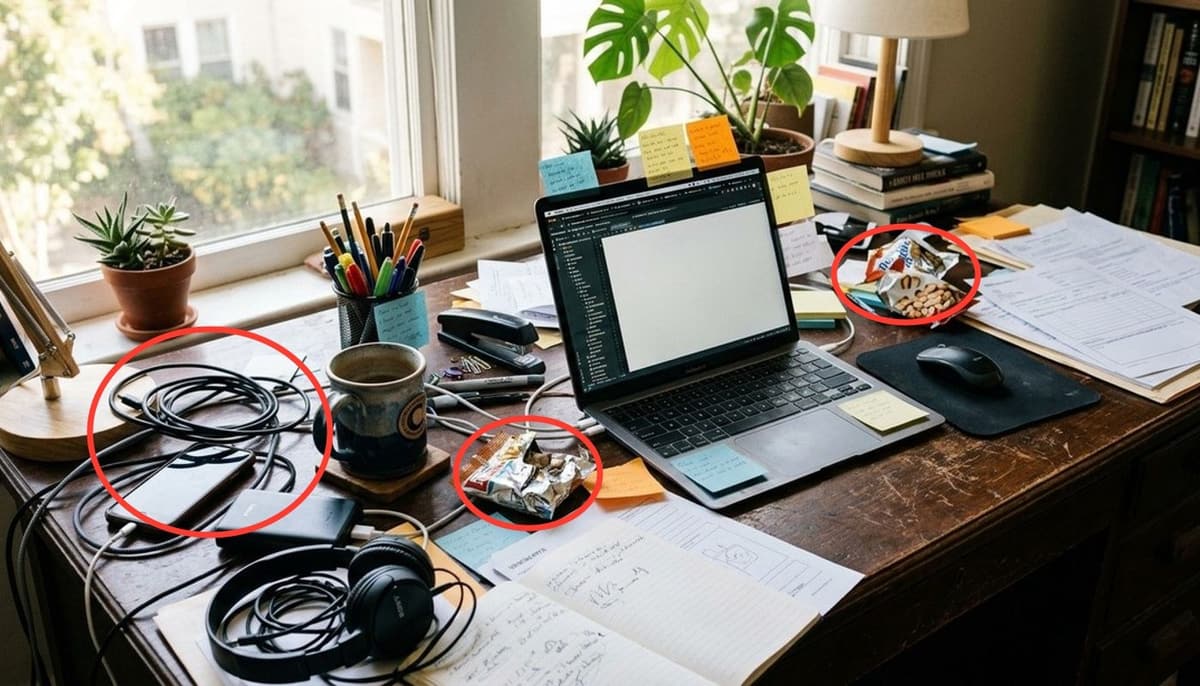 Remove clutter
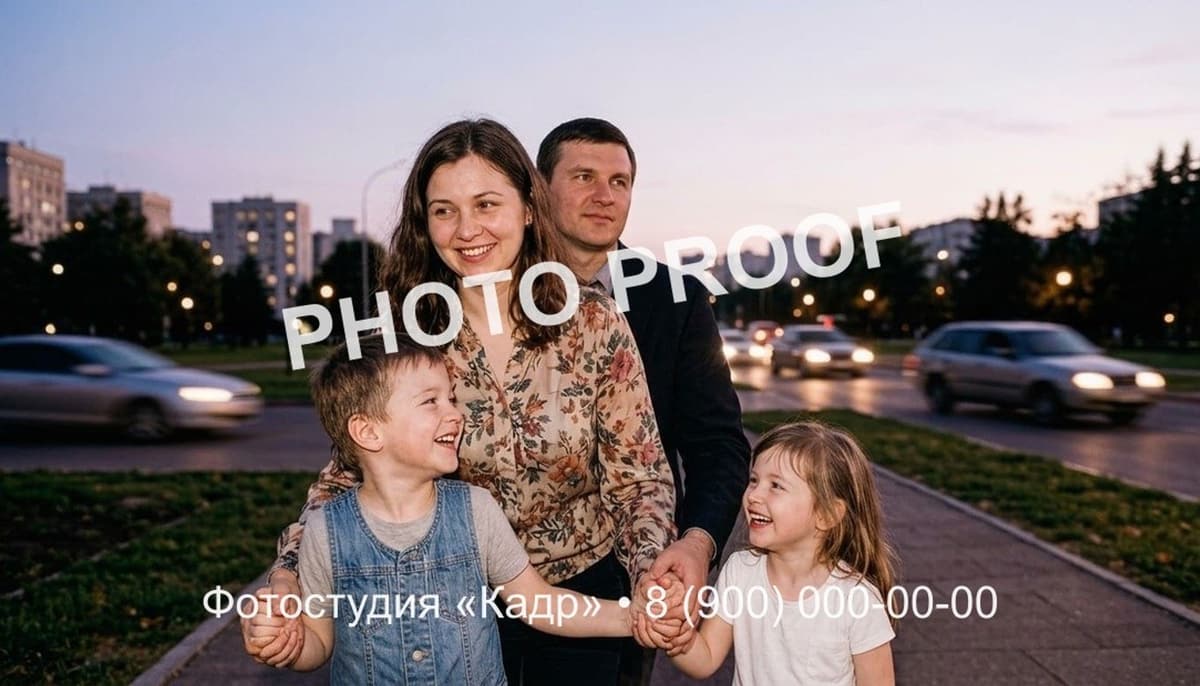 Remove text from image
 AI photo editor
 Background remover
 Change background
 Photo enhancer
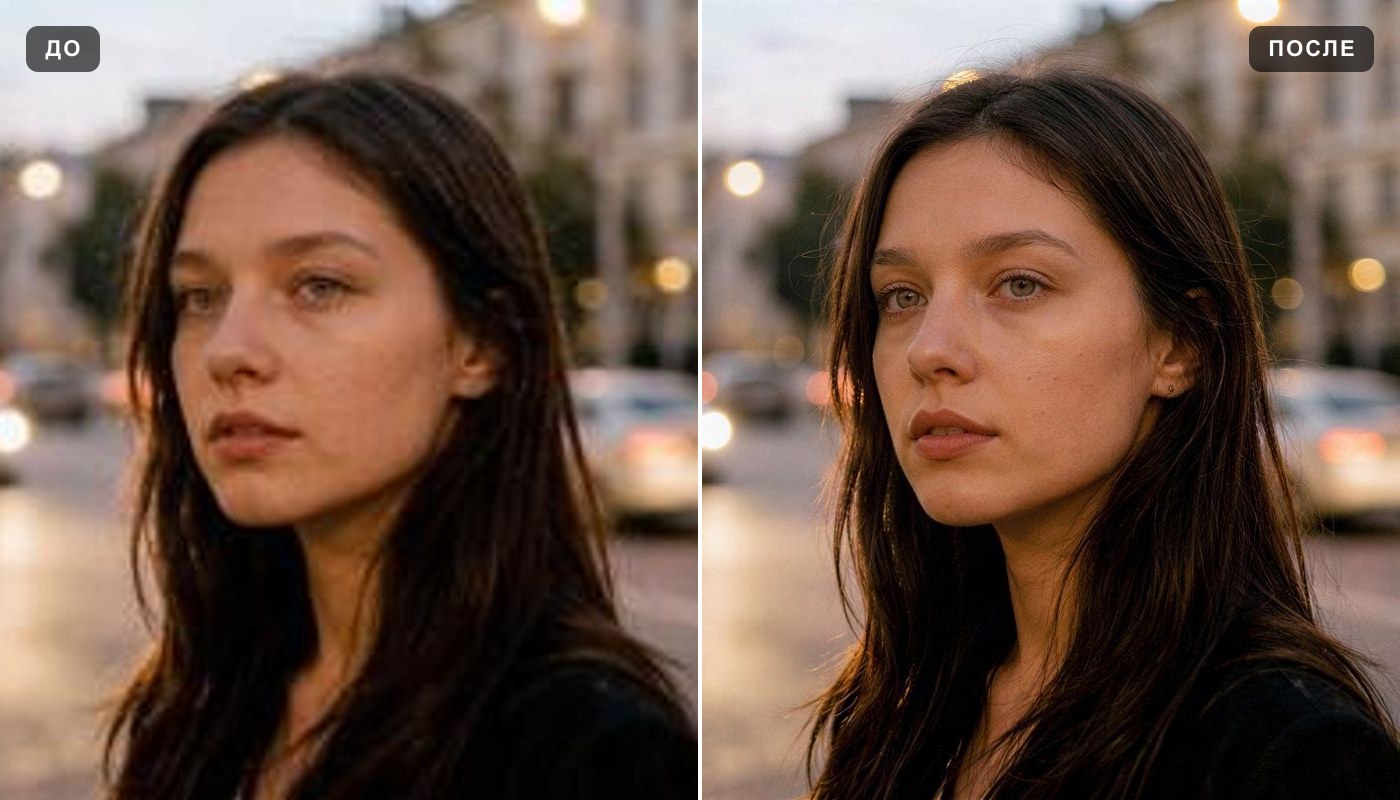 Image upscaler
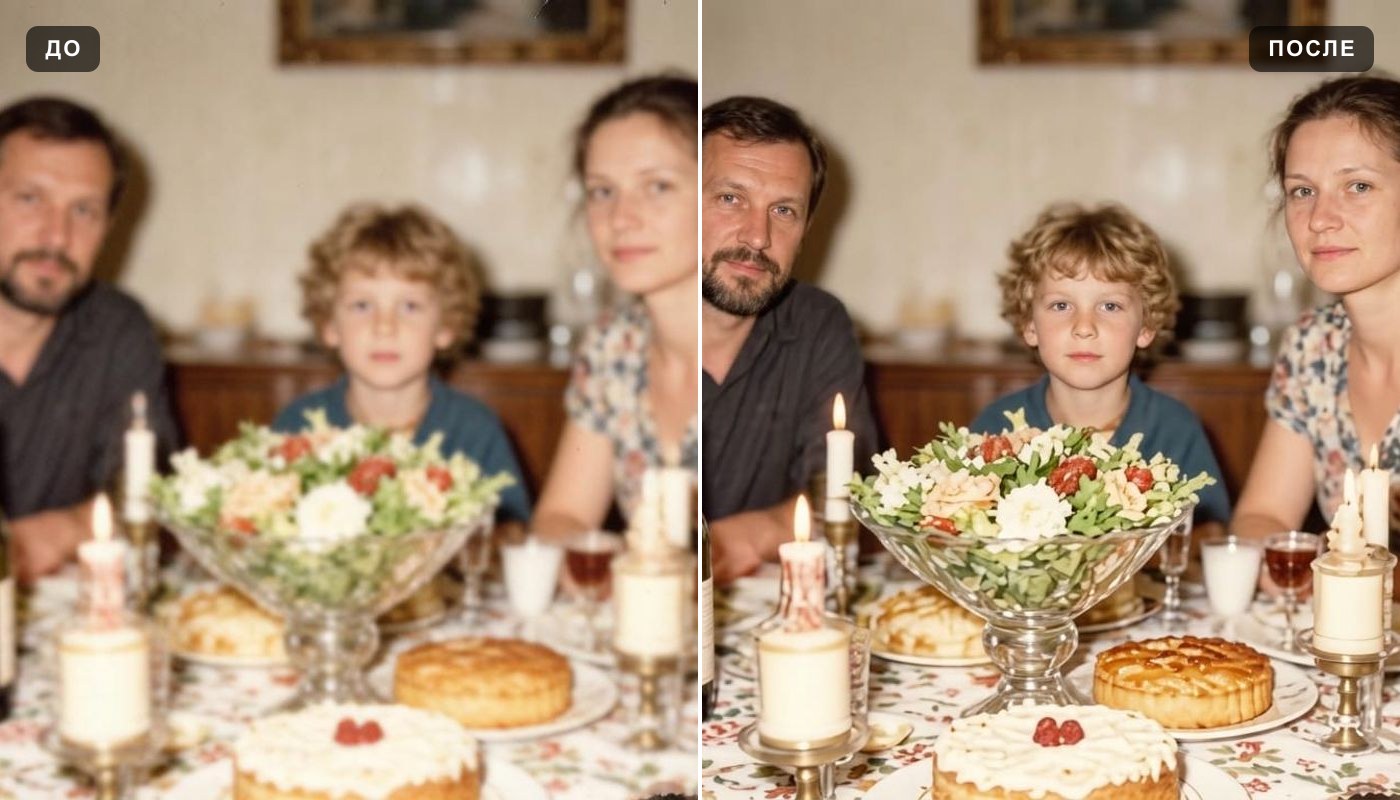 Unblur image