Face Aging Online: See Yourself at 60, 70 or 90
Upload a portrait, type the age you want into Additional wishes — "show me at about 60", "light aging, ten years older", "gray hair, keep the beard" — and press Create. The AI adds what time adds: wrinkles, gray hair, thinner skin, a softer jawline, while the face shape, the eyes, the nose and the moles stay yours, so relatives recognize the person at a glance. The same field runs the other way if you would rather drop fifteen years. Every run is saved in History next to the photo you uploaded, which is never changed. What comes back is a plausible picture rather than a look at your future: real aging depends on genes, sun, sleep and habits, and none of that is in a photograph.
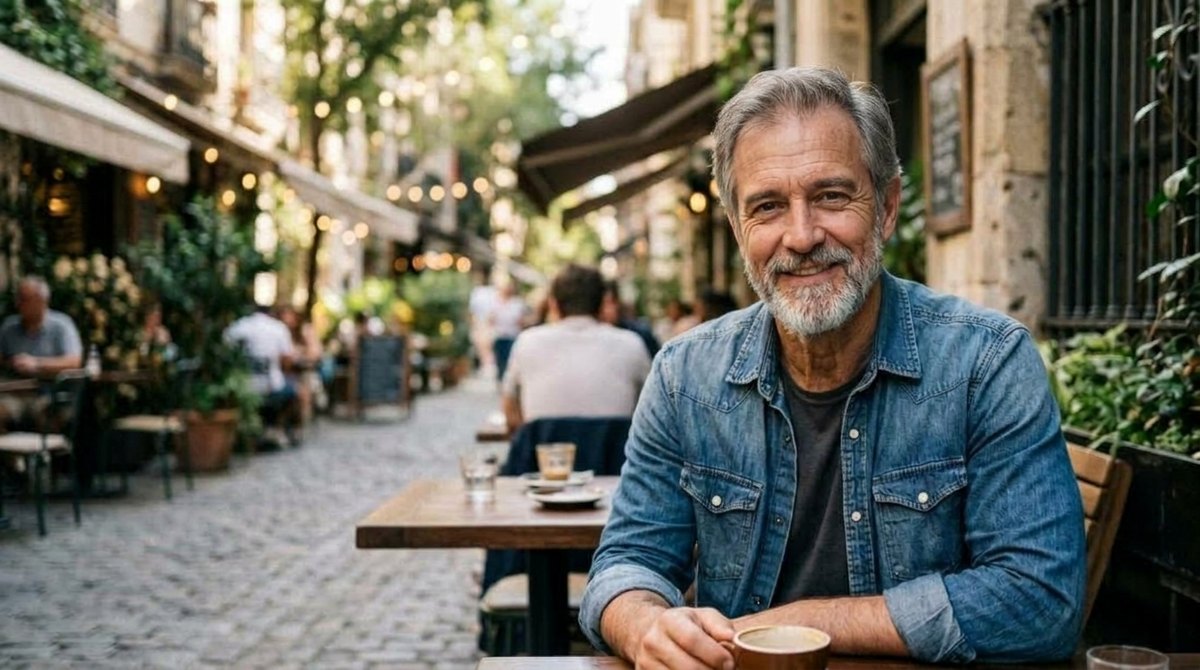
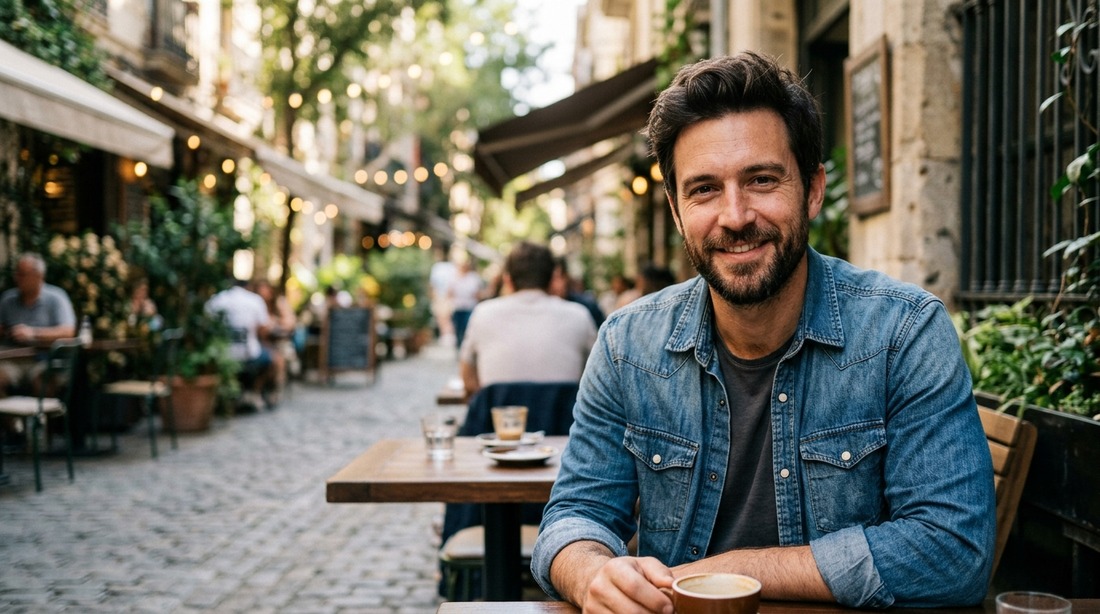 BeforeAfter↔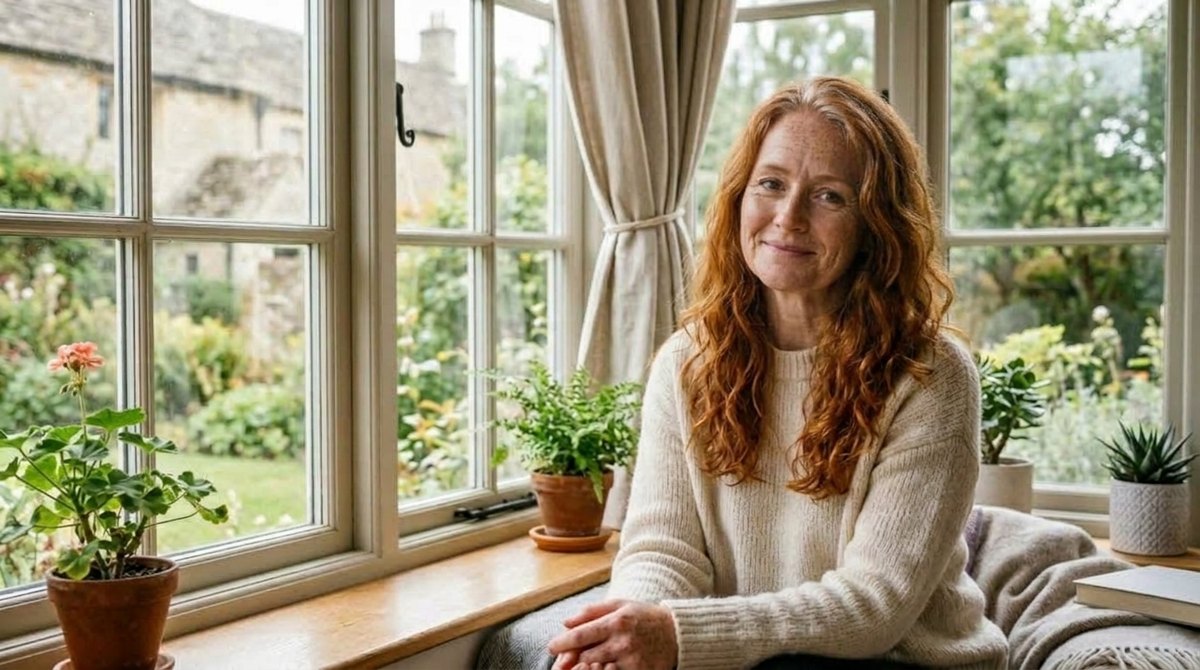
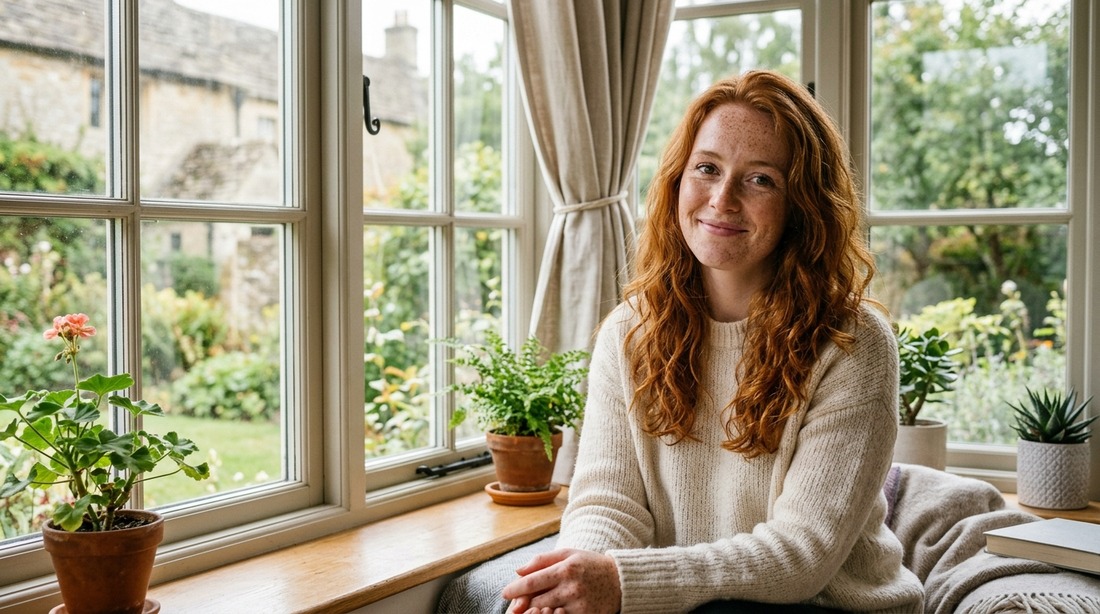 BeforeAfter↔
How to age a face in three steps
There is nothing to install and nothing to learn. The comparison sliders near the top of this page hold a portrait as it was taken on one side and the same person with a few decades added on the other. Drag the handle across a face and you can see exactly what the tool does: the frame, the clothes, the background and the pose hold still, and only the age moves. Download is open from the first run, and the file on your device is never touched.
One thing to settle before you start, because it is the point of the whole page: what comes back is a plausible picture, not a look at your future. Very good fun, and not a forecast. There is a section on that below, and it is the one worth reading.
What time changes in a face, and what stays yours
Aging a photograph badly is easy: smear the skin, paint the hair white, done — it looks like a mask. What makes an aged portrait convincing is that several things move at once while a handful of others do not move at all.
What the AI adds
What it leaves alone
That combination is why an aged portrait usually lands: a stranger sees an older person, and the family sees this older person. It also explains the caveat that goes with it. The result is rendered fresh rather than retouched line by line, so very fine details can drift — a small mole, an earring, a tattoo, lettering on a shirt. If a detail matters, compare it against the original in History first.
Pick the age: what to write in Additional wishes
There are no preset buttons for "50" or "old" on this page. Steering happens in one place: the Additional wishes field under the upload panel. That is better than a row of fixed options, because a number is not the only thing worth asking for — you can also say what to keep.
Plain language, one line, written the way you would say it out loud:
Four rules separate a good run from a wasted one. Give one target, not a range — "about 70" works, "somewhere between 50 and 90" gets you an average of nothing. Say what to keep, because whatever you do not mention is fair game: the beard, the glasses, the hairstyle. Keep it short; three or four specifics land, ten start competing. And use years rather than adjectives — "twenty years older" is a clearer instruction than "old".
You can also ask for a flavor of aging rather than a number, and this is where the field earns its keep. "Aged well, fit and tanned" and "worn out, heavy lines, tired" are the same face at the same age and two completely different pictures. "Keep it gentle, just gray hair and a few lines" is the version people actually put on a birthday card.
Next to the field sits the Improve description button, which rewrites your line into a fuller instruction; it is billed like a generation rather than being a free helper, and a one-line wish of your own works perfectly well. Remember too that every run is a fresh draw: the same wish twice gives two slightly different older faces, so if the first looks off, press Create again before rewriting anything.
Wordings you can copy
Paste one of these into the wishes field and swap in your own details.
Twenty years older, light touch
Age this face by about twenty years. First wrinkles around the eyes, a little gray at the temples, slightly thinner skin. Keep the face shape, the eyes, the nose and the smile exactly as they are. Do not change the clothes, the background or the framing.
Around 70
Show this person at about 70: gray hair, deeper lines on the forehead and around the mouth, a softer jawline, thinner skin. Keep the features clearly recognizable and leave the clothes, the pose and the background as they are.
Very old, around 90
Show this person at about 90: thin white hair, deep wrinkles, spotted skin, heavier eyelids, a narrower face. Keep the eye color, the shape of the nose and the expression unchanged.
Keep the beard
Age this man by about thirty years and keep the beard exactly as it is, only gray. Add wrinkles around the eyes and a slightly receding hairline. Do not shave him, do not change the glasses and do not change the shirt.
Fifteen years younger
Make this face about fifteen years younger: smoother skin, no gray, a fuller hairline. Keep the same features, the same expression, the same clothes and background. Do not turn it into a child's face.
A couple, both aged together
Age both people in this photo by about forty years and keep each of them recognizable: gray hair, wrinkles, softer features. Do not move them, do not swap their positions, and do not change the clothes or the background.
Can it make a face look younger instead?
Yes. The same field runs in both directions: "fifteen years younger", "show me in my twenties", "smooth skin, no gray, fuller hair". The mechanics are the mirror image — lines go, gray goes, the hairline fills in, the jaw firms up — while the features, the clothes and the background stay where they are.
Two honest limits on the younger direction. The first is distance: ten or twenty years back is convincing, forty is not, because faces do not merely smooth out as they go back in time, they change proportion. The second is that a younger face is a guess in exactly the same way an older one is — the tool has never seen you at twenty, it has seen a great many twenty-year-olds.
And a common mix-up worth clearing up: if you do not want a different age at all, only a cleaner version of the portrait you have — calmer skin, less shine, no blemish on the chin — that is retouching, not aging. It lives on photo retouch, which leaves the age alone. Asking here for "younger" when you meant "tidier" is how people end up with a face that is subtly not theirs.
Why people in the US actually run this
Almost nobody opens this page for a serious reason, and that is fine — it is the honest use case.
Birthday cards are their own small industry here. Somebody turns thirty and gets themselves at eighty on the front of the card, and reunion slideshows work the same way: a page of everyone aged forty years gets a bigger laugh than any caption. If you print one, remember that aging a photo does not add pixels — run the result through the image upscaler if it is going on paper at any real size.
People also arrive here looking for the opposite direction. If what you have is an old photograph of a grandparent and you want to see it clearly rather than see them older, the work is repair, not aging: restore old photos for a damaged print and colorize photo for a black and white one.
Is this what you will really look like?
No. Not in the sense the question is usually meant, and this is the most important paragraph on the page, so it goes before all the flattering ones.
A photograph holds one face at one moment: bone structure, the skin you had that week, the light in that room. What actually decides how a person looks at seventy sits almost entirely outside the frame — the genes you inherited, how much sun you got over decades, sleep, weight that went up and down, glasses or no glasses, the haircut you settle into at fifty. None of that is in the pixels, and nothing that reads a photograph can find it there.
What the tool does instead is worth understanding, because it tells you how much weight to put on the result. It has seen an enormous number of faces at different ages, it has learned the average way a face changes over time, and it draws that average path onto the face you uploaded. The output is one plausible version among many. Run the same photo with the same wish twice and you get two slightly different older people — the clearest possible demonstration that this is a draw, not a calculation.
So use it for what it is good at: a laugh in a group chat, a card, a slideshow, a class assignment, a costume test, a small push to wear a hat in July. It is not a measurement of anything, not a statement about how any particular person will look in forty years, and not something to attach to a real person's identity or age in any setting where being right matters. Some people call this kind of picture age progression; here it is entertainment with a face in it.
Saying that plainly has a nice side effect: once you stop treating the result as a prediction, it gets more fun rather than less. Run it at 50, at 70 and at 90, ask for a version that aged well and one that did not, and watch the same face carry all of them.
Which photo works, and where it struggles
The tool only ever sees the file you upload, and with faces the input matters more than usual: aging is drawn onto landmarks, so anything that hides a landmark gets invented instead.
And the hard cases, because they come up constantly. Beards and mustaches are the most common complaint: unless you say to keep the beard, the model may trim it, regrow it or gray it in a way you did not ask for. Eyeglasses are second: frames can shift shape or quietly vanish, so name them. Hats, hoods and scarves cover the hair, and hair carries half the signal of age, so an aged face under a baseball cap often looks like the same face with lines added. Heavy beauty filters already baked into the photo confuse things further, because the skin they show is not skin.
Children's faces are the roughest case of all. A child does not merely wrinkle on the way to adulthood, the whole face changes proportion: the jaw grows, the nose finds its shape, the eyes stop being comparatively huge. The result is much closer to a plausible stranger than to a grown-up version of that particular kid, and the etiquette of that is in the next section.
If the portrait itself is the problem, fix that first and age the fixed version: photo enhancer for a dark, flat or low-quality snapshot, unblur image for one that missed focus, image upscaler for a crop that is too small. A likeness is never promised here, but it comes much closer on a clean, sharp, well-lit face.
Other people's faces: ask first
Your own photo needs no discussion. Somebody else's does, and the rule is short: upload their picture if they are happy for you to, and not otherwise. An aged face is a comment on a person, however light the intent, and the joke reads differently from the receiving end than it did in your head. A coworker's portrait pulled off a work page and posted at ninety is the standard way this goes wrong.
Two more rules cover the rest. Do not attach a result to a real person's name in a way that suggests it shows them — it does not, it shows one guess. And be careful with children: running your own kid's photo for the family thread is one thing, publishing an invented adult version of a child's face is another, and that face is theirs rather than yours to put online.
The mechanics are worth knowing too. You upload one picture that you pick yourself — nothing asks for your camera roll and no folder is scanned. The original file is never modified: the aged version is a new image, saved in History beside it and open on any device you sign in on.
The part to actually pay attention to is the Private switch. On the higher paid plans it keeps a run out of the public feed — with it on, only you see the result. Without it, a generated image may be shown in the site's gallery of work. The switch sits next to Create and has to be on before the run, not after; on a free account it opens an upgrade window instead. So if a portrait is one you would not want appearing anywhere else, either turn Private on first, on a plan where it is available, or do not upload it at all.
Formats, phones and file size
There is no app to install. The page opens in a browser on an iPhone, an Android phone, a laptop or a tablet, which suits the most common workflow by far: somebody takes a selfie in the kitchen, ages it, and pastes it into a chat.
Accepted formats are the ones printed on the upload panel: JPG, PNG, WEBP — up to 10 MB. There is no limit on the resolution of what you upload, and the file goes to processing at full quality rather than being shrunk on the way in. Under Quality, Standard returns 1024 px on the long side and Pro returns 2048 px, which is the one to use if the picture is going on paper rather than into a message.
Two notes that trip people up. HEIC and HEIF files are not accepted — that is the default on a modern iPhone, so either set the camera to "Most Compatible" in Settings or share the picture once to yourself, which converts it to JPG along the way. And this tool works on still photographs only: it does not process video or sound, so a frame grabbed from a video call will work but will be soft, and a clip will not work at all.
Face aging free: what you get and where the limits are
You can try it for free. A new account gets two free generations in total — not two a day, not two a month — and this tool is one of the ones they cover. Free runs use Standard quality; Pro, at the higher resolution, is part of a paid plan, and the terms are on the pricing page.
Two things worth knowing before you start rather than after. Free runs carry a light ai.neiroset.com signature in the bottom-right corner; any purchase removes it permanently, including from images you already generated. On this tool the Download button is open from the first run, so you can save what you make right away.
There is also a pace limit of six runs a minute per account — generous for normal use, though worth remembering on the evening you decide to age everybody at the reunion. And note that Improve description is billed like a generation rather than being a free extra, so it is a paid-plan convenience: with two free attempts in hand, write the line yourself.
Do I need an account?
Yes. You can fill in the whole form as a guest, but pressing Create opens the sign-in window. Without an account there is nowhere to keep results, and since each run comes back slightly different, History is what lets you compare three versions of the same face instead of losing the good one when a tab closes.
What to keep in mind
Frequently asked questions
Is this what I will really look like?
No, and no tool can tell you that. A photo records one face at one moment; how someone actually ages comes down to genes, sun, sleep and habits, none of which is in the picture. What you get is a plausible older version drawn from the average way faces change — entertainment, not a forecast.
How do I choose the age?
Write it in Additional wishes before pressing Create: "show me at about 60", "light aging, ten years older", "90 years old, thin white hair". One target works better than a range, and it is worth adding what to keep — the beard, the glasses, the hairstyle.
Can it make a face look younger instead?
Yes, the same field runs both ways: "fifteen years younger", "smooth skin, no gray, fuller hair". Ten to twenty years back is convincing; much further and the proportions of the face change, so you get a relative rather than an earlier you.
Will the person still look like themselves?
The face shape, the eye color, the nose, the mouth and the expression carry over, which is usually enough for family to recognize the person at a glance. The image is rendered fresh rather than retouched, though, so fine details such as moles, earrings and lettering can shift.
Why did it change my beard or remove my glasses?
Because anything you do not mention is treated as fair game. Put it in the wish: "keep the beard, same shape, just gray" or "keep the glasses". These two are the most common complaints and both are fixed by one extra clause.
Can I age a photo of my partner or a friend?
Only if they are happy about it. An aged face is a comment on a person, and it reads differently from the receiving end than it does in your head. Do not post a result without telling them.
Does it work on a child's photo?
Technically yes, but it is the least reliable case there is: children change proportion as they grow, not just skin, so an aged child reads as a plausible stranger. Fine for the family thread, and not something to publish.
Is it really free?
A new account gets two free generations in total after you sign in, at Standard quality. Free runs carry a light ai.neiroset.com signature in the corner, and any purchase removes it permanently, including from what you already made.
Does it work on a phone?
Yes, in a mobile browser on iPhone and Android, with no app to install. One catch: HEIC files from an iPhone are not accepted, so save or share the photo as JPG first.
I have an old photo of my grandfather. Can I use this on it?
You can age it, but that is rarely what people want from an old print. If the photo is damaged or faded, restore old photos is the tool; if it is black and white, colorize photo is. Age the cleaned-up version afterwards if you still want to.
Try other tools
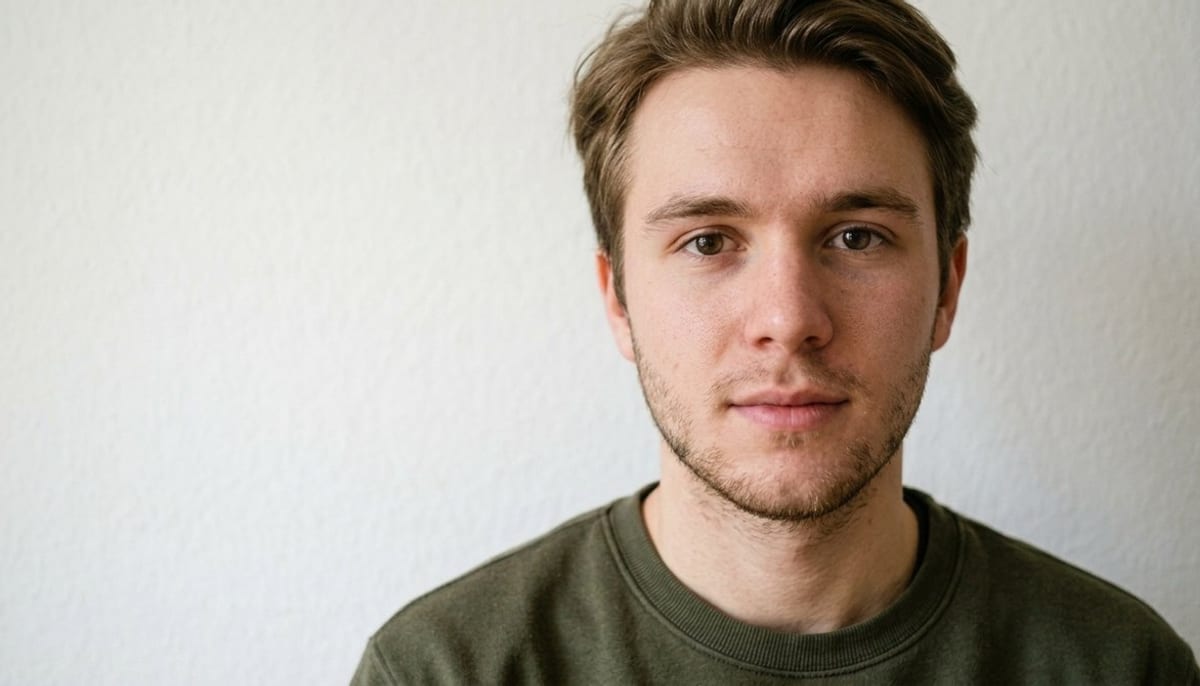 Photo retouch
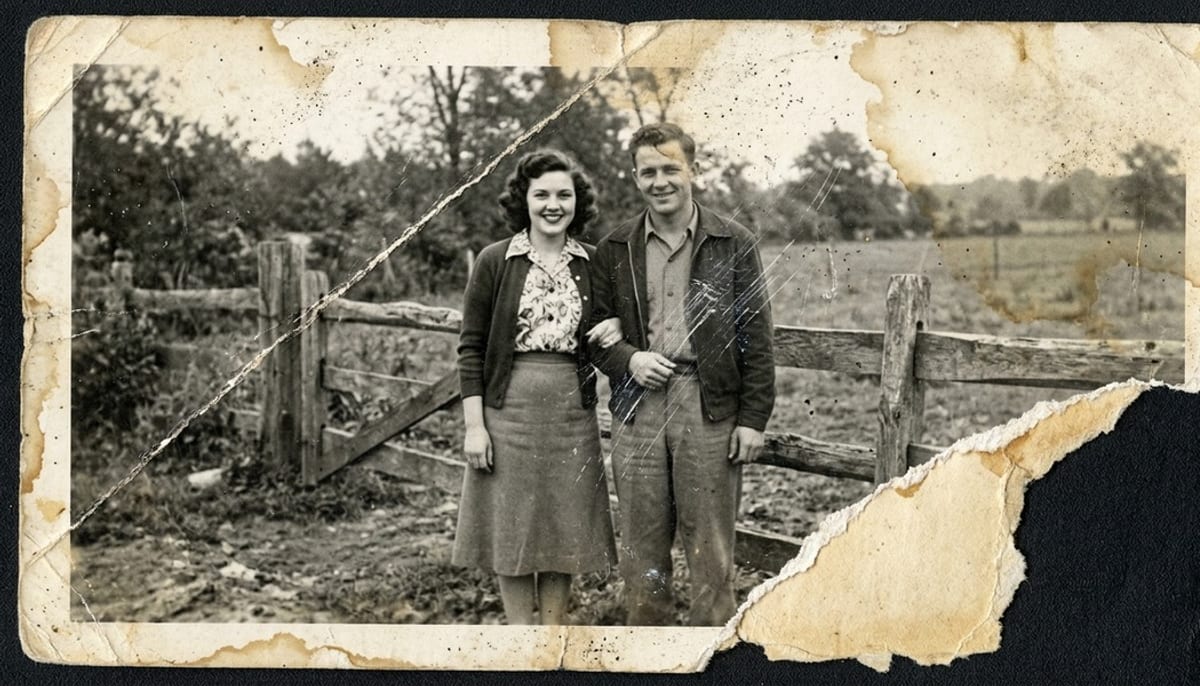 Restore old photos
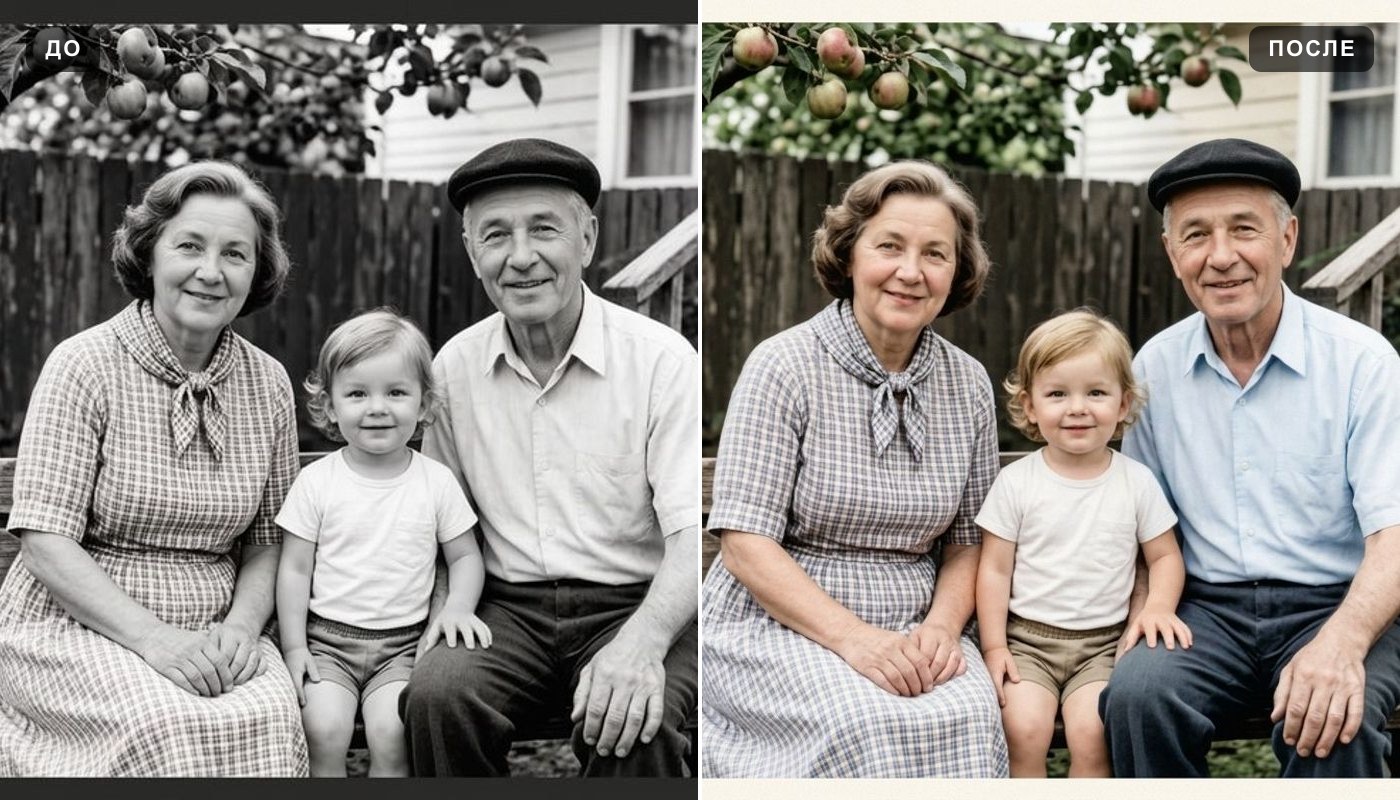 Colorize photo
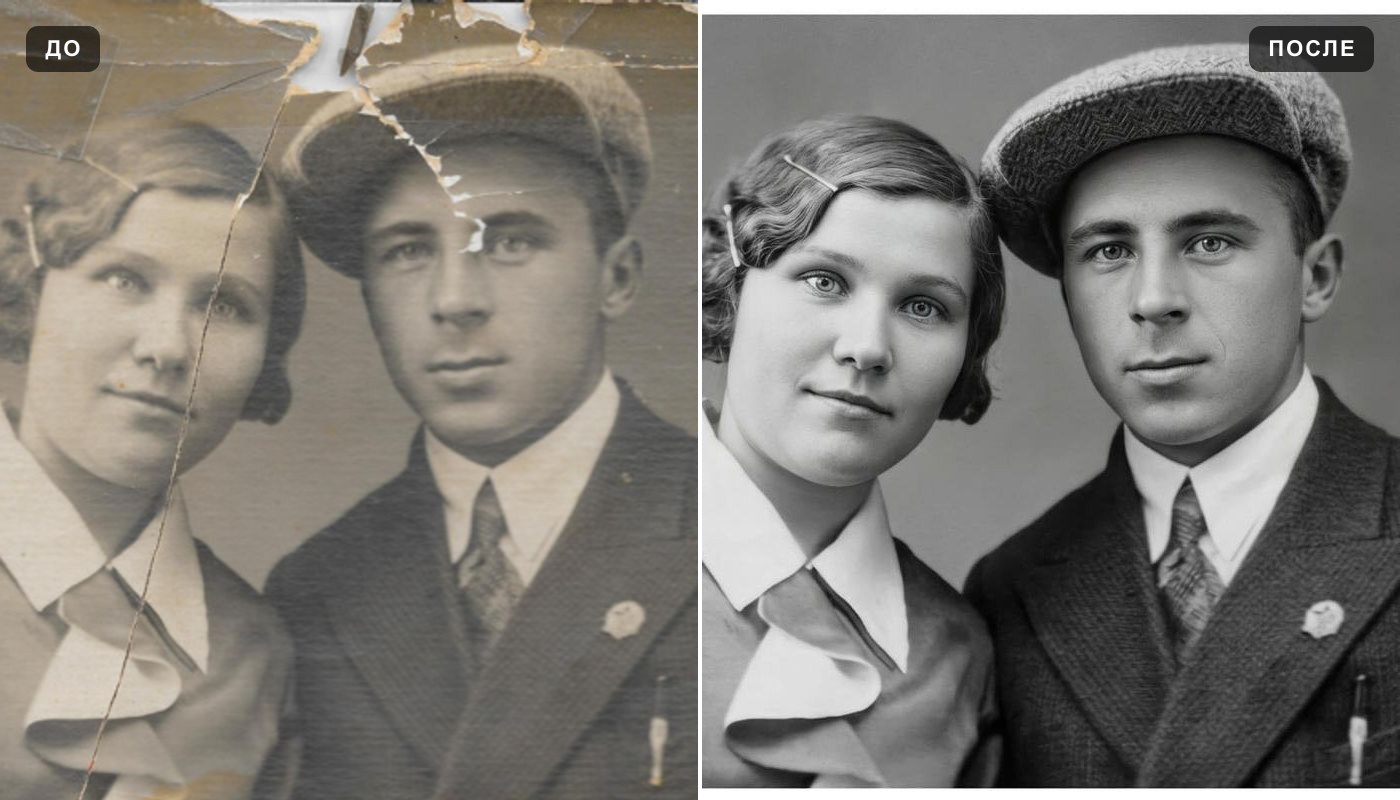 Photo enhancer
 Profile picture
 AI photo editor
 Anime style
 Image upscaler